Metabase
Metabase is an open-source business intelligence tool that provides simple and easy-to-use data analysis and visualization capabilities, supports rich data source connections, and enables the rapid construction of interactive dashboards. Its key features include a user-friendly interface, ease of use, support for self-service analysis, visualization dashboard creation, data drill-down exploration, and an integrated SQL query editor for SQL queries and data export.
The Metabase Apache Doris Driver allows Metabase to connect to Apache Doris databases, enabling querying and visualization of both internal and external Doris data.
This driver allows Metabase to integrate Apache Doris databases and tables as data sources. To enable this feature, follow the setup guide below:
- Installing and configuring the driver
- Configuring the Apache Doris data source in Metabase
- Building visualizations in Metabase
- Connection and usage tips
Installing Metabase and the Doris Driver
Prerequisites
- Download and install Metabase version 0.48.0 or later. See the Metabase Installation Documentation for details.
- Prepare the Apache Doris cluster.
Install the Doris Driver
First, you need to download the latest metabase-doris-driver.
Then install the driver. The installation method depends on your Metabase deployment method:
Metabase Standard Deployment
-
Download the Driver
-
Create the Metabase plugin directory (if it doesn't exist):
mkdir -p $path_metabase/plugins
- Copy the JAR file to the plugin directory:
cp doris.metabase-driver.jar $path_metabase/plugins
- Restart the Metabase service
Metabase Docker Deployment
If Metabase is started using Docker, it is recommended to start it by mounting doris.metabase-driver.jar. The plugin path inside the Docker container is /plugins/.
-
Download the Driver
-
Start Metabase using the following command:
docker run -d -p 3000:3000 --name metabase -v $host_path/doris.metabase-driver.jar:/plugins/doris.metabase-driver.jar metabase/metabase
Configuring a Doris Data Source in Metabase
Now that you have Metabase and metabase-doris-driver installed, let's see how to define a data source in Metabase that connects to the tpch database in Doris.
Connection Parameter Description
The following parameters need to be configured when connecting to Apache Doris:
| Parameters | Meaning | Example |
|---|---|---|
| Display Name | Data source display name | Doris-TPCH |
| Host | Doris FE node address | 127.0.0.1 |
| Port | Doris Query Port (MySQL protocol port) | 9030 |
| Catalog name | Catalog name (optional, defaults to internal) | internal |
| Database name | Database name (required) | tpch |
| Username | Username | root |
| Password | Password | your_password |
Database Name Format Explanation:
- Internal Tables: Enter the database name directly, such as
tpch. The system will automatically use theinternalcatalog. - External Tables/Data Lake: Enter the Catalog configuration. If only linking internal tables, this item is not required.
Configuration Steps
-
Start Metabase and log in.
-
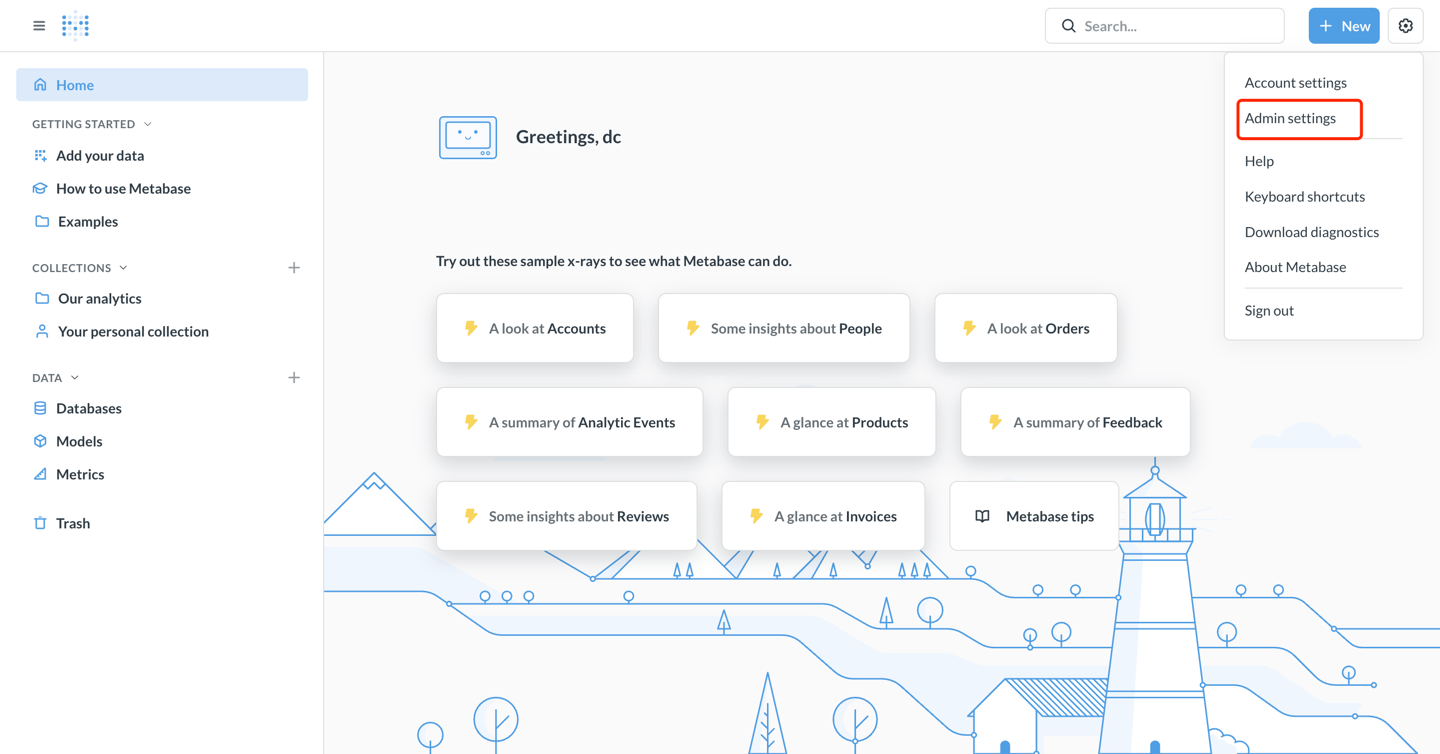
Click the gear icon in the upper right corner and select Admin Settings.
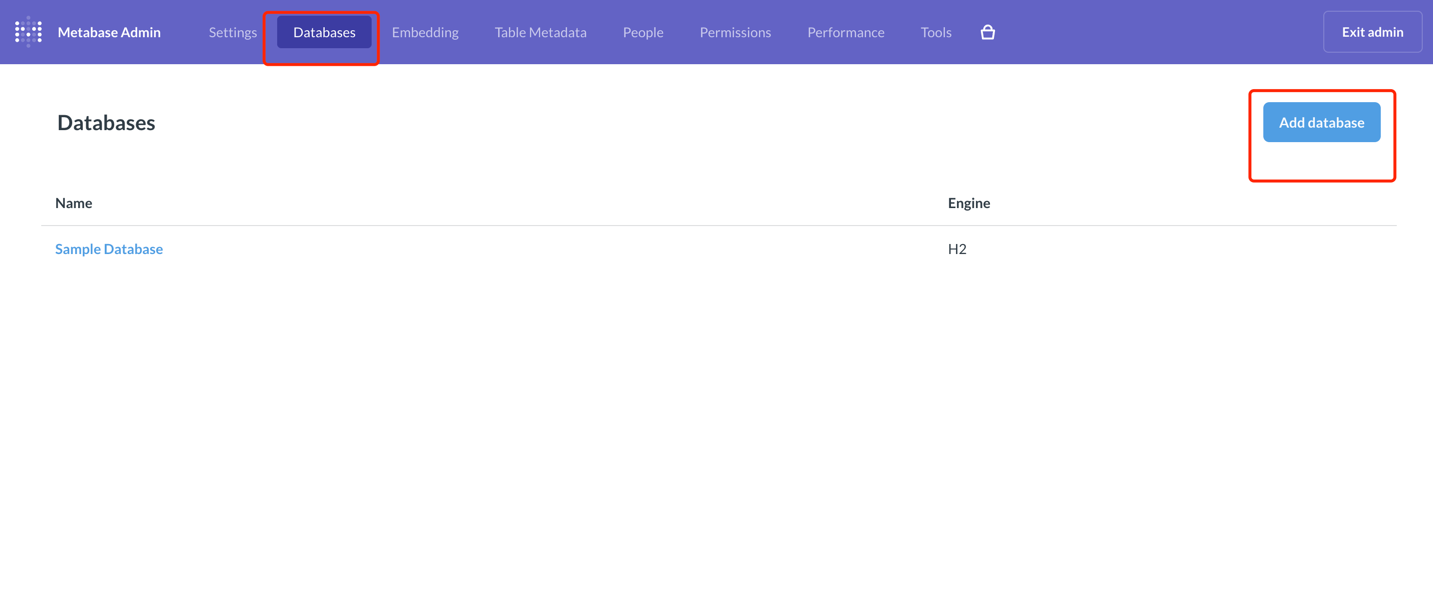
- In the left-hand menu, select Databases, and click the Add database button in the upper right corner.
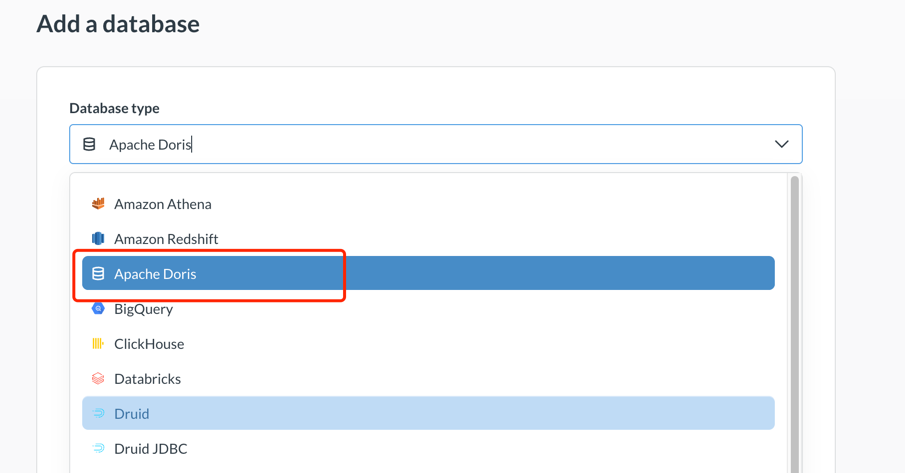
- In the Database type dropdown menu, select Apache Doris.
- Fill in the connection information:
- Display name: Doris-TPCH
- Host: 127.0.0.1
- Port: 9030
- Database name: tpch
- Username: admin
- Password: ******
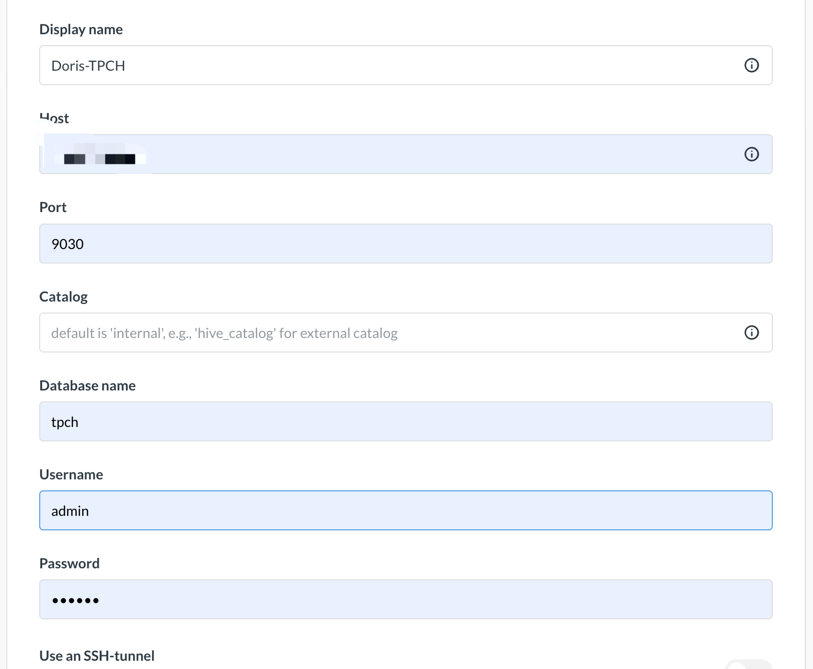
-
Click Save to save the configuration.
-
Metabase will automatically test the connection and synchronize database metadata. If the connection is successful, a success message will be displayed.
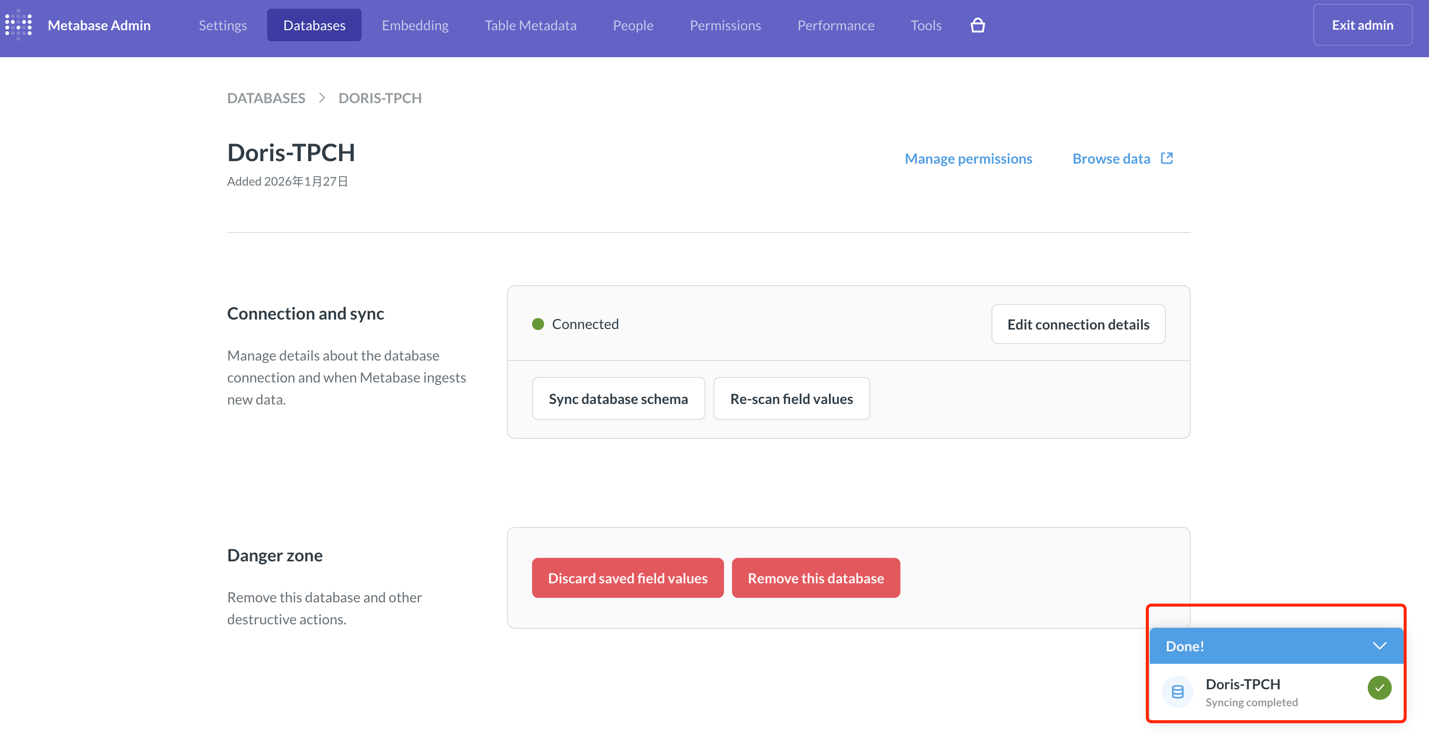
At this point, the data source configuration is complete! Next, we can build visualizations in Metabase.
Building Visualizations in Metabase
We choose TPC-H data as the data source. Refer to this document for instructions on building the Doris TPC-H data source.
Now that we have configured the Doris data source in Metabase, let's visualize the data...
Suppose we need to analyze the order amount growth curve over time for different freight methods for cost analysis.
Creating a Question
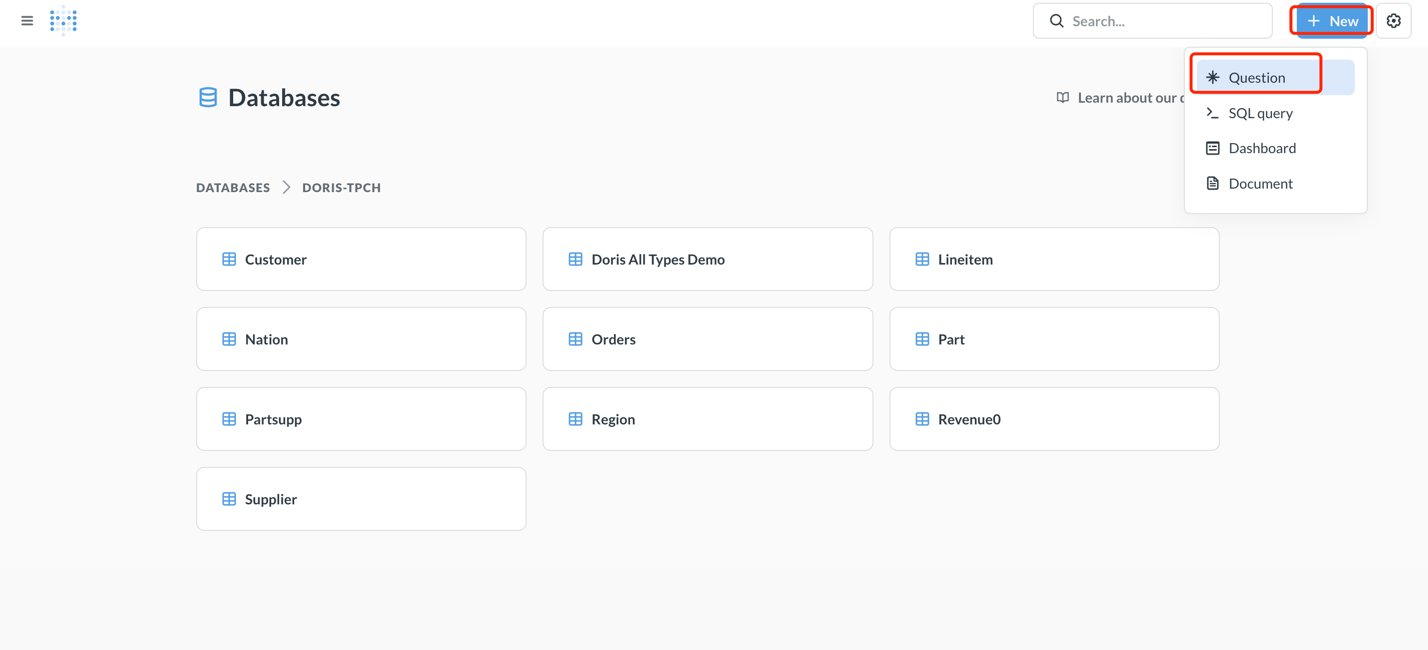
- Click the New + button in the upper right corner of the homepage and select Question.
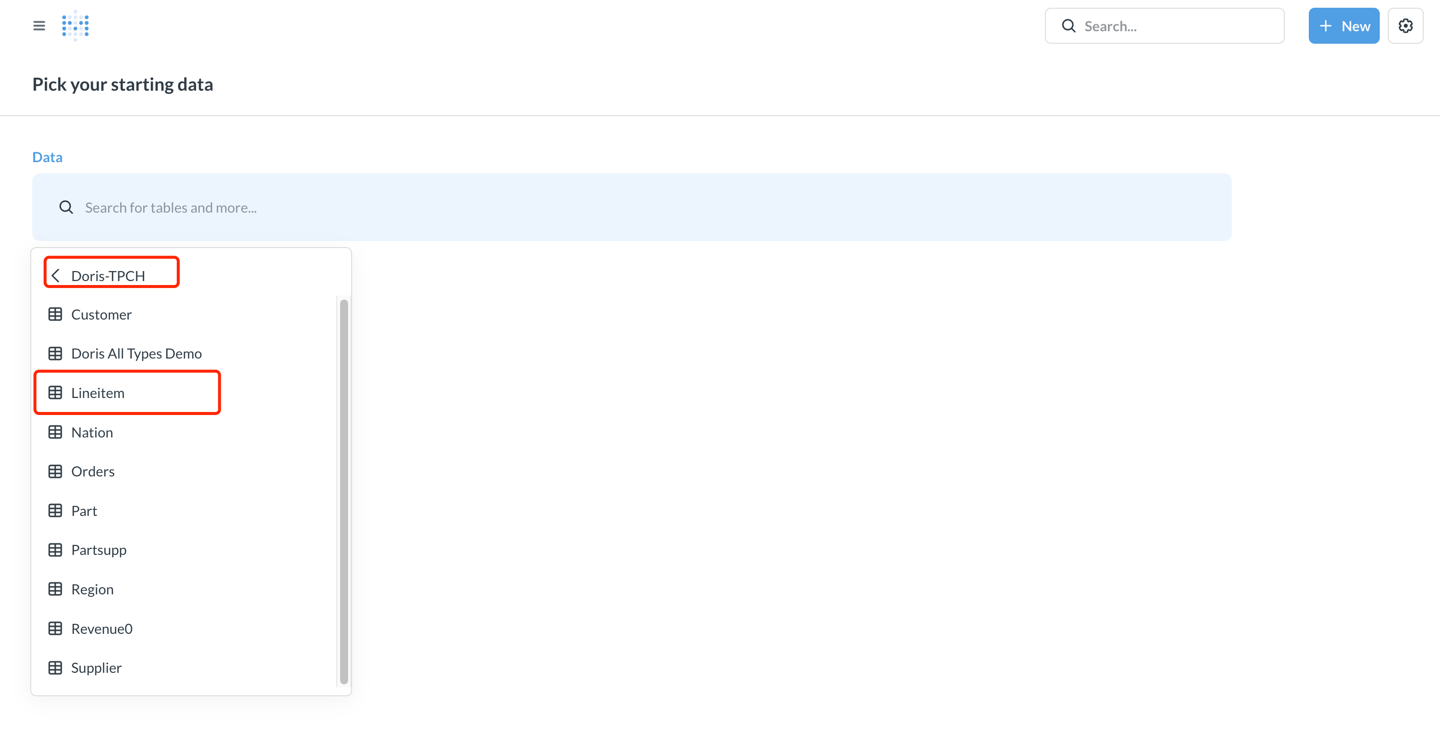
- Select the data source:
- Database: Doris TPCH
- Table: lineitem
Building Custom Metrics Using SQL
To calculate revenue, we need to use a custom SQL expression:
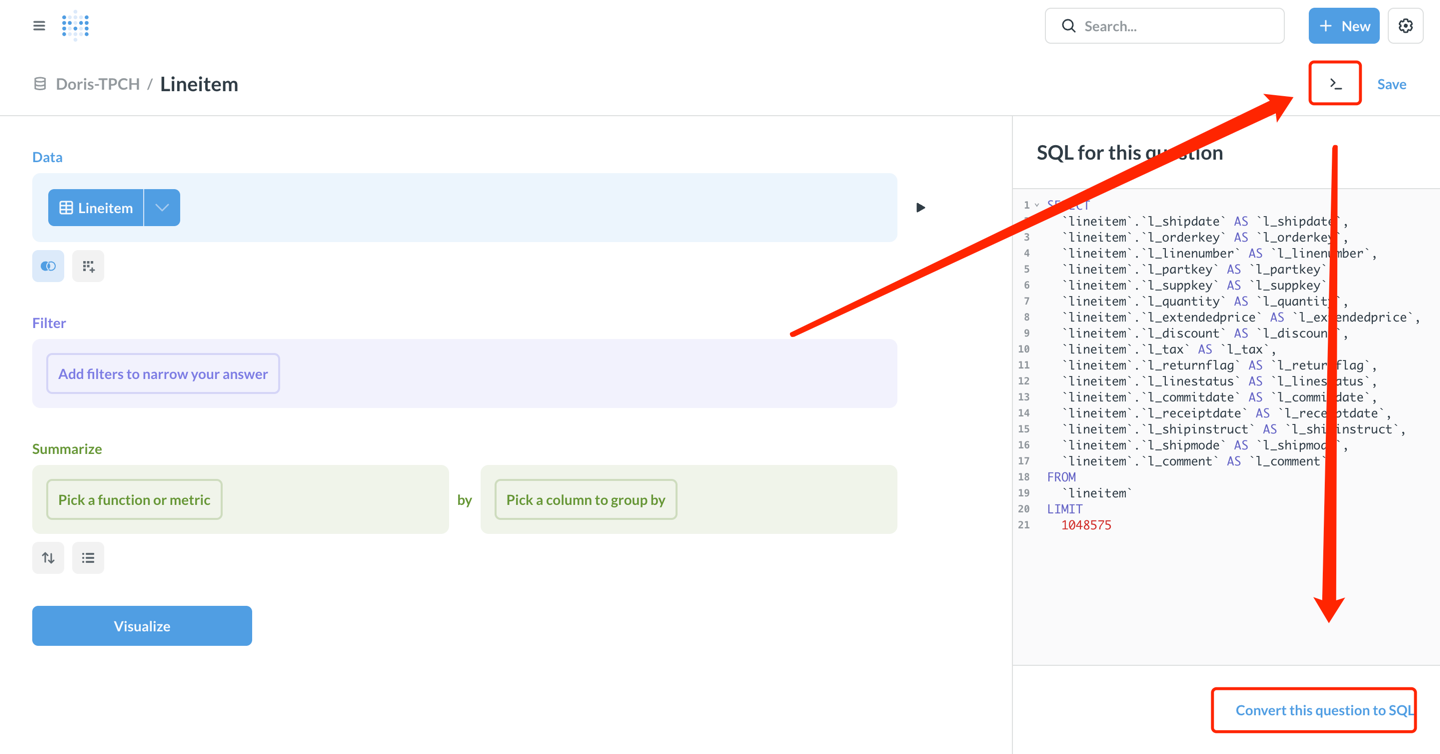
- Click the view sql switch in the upper right corner, then click convert this question to SQL to edit the SQL.
- Enter the following SQL query:
SELECT
  DATE_FORMAT(l_shipdate, '%Y-%m') AS ship_month,
  l_shipmode,
  SUM(l_extendedprice * (1 - l_discount)) AS revenue
FROM lineitem
WHERE l_shipdate >= '1995-01-01'
  AND l_shipdate < '1997-01-01'
GROUP BY
  DATE_FORMAT(l_shipdate, '%Y-%m'),
  l_shipmode
ORDER BY ship_month, l_shipmode
- Click the Visualize button in the lower right corner to view the results.
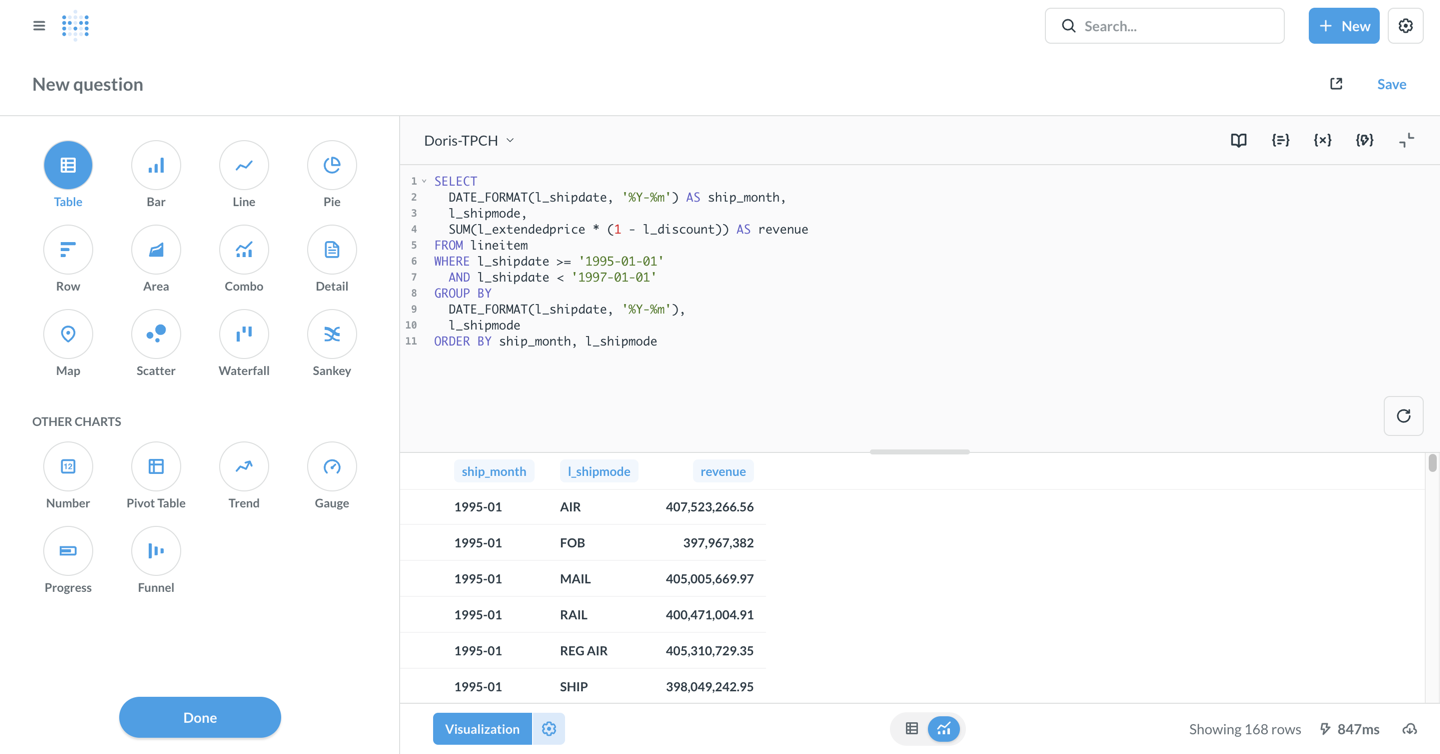
Configure Visualization Charts
- The default display is a table. Click the Visualization button in the lower left corner and select the Line chart type.

-
Configure chart parameters as needed (metabase automatically configures as follows):
- X-axis: ship_month (shipping month)
- Y-axis: revenue (revenue)
- Series: l_shipmode (shipping mode)
-
Customize chart style:
- Click the Settings icon to adjust colors, labels, legend position, etc.
- In the Display tab, you can set axis titles, value formats, etc.
-
After configuring the chart, click Save in the upper right corner.
-
Enter the issue name: my-tpch, and select the collection to save to.
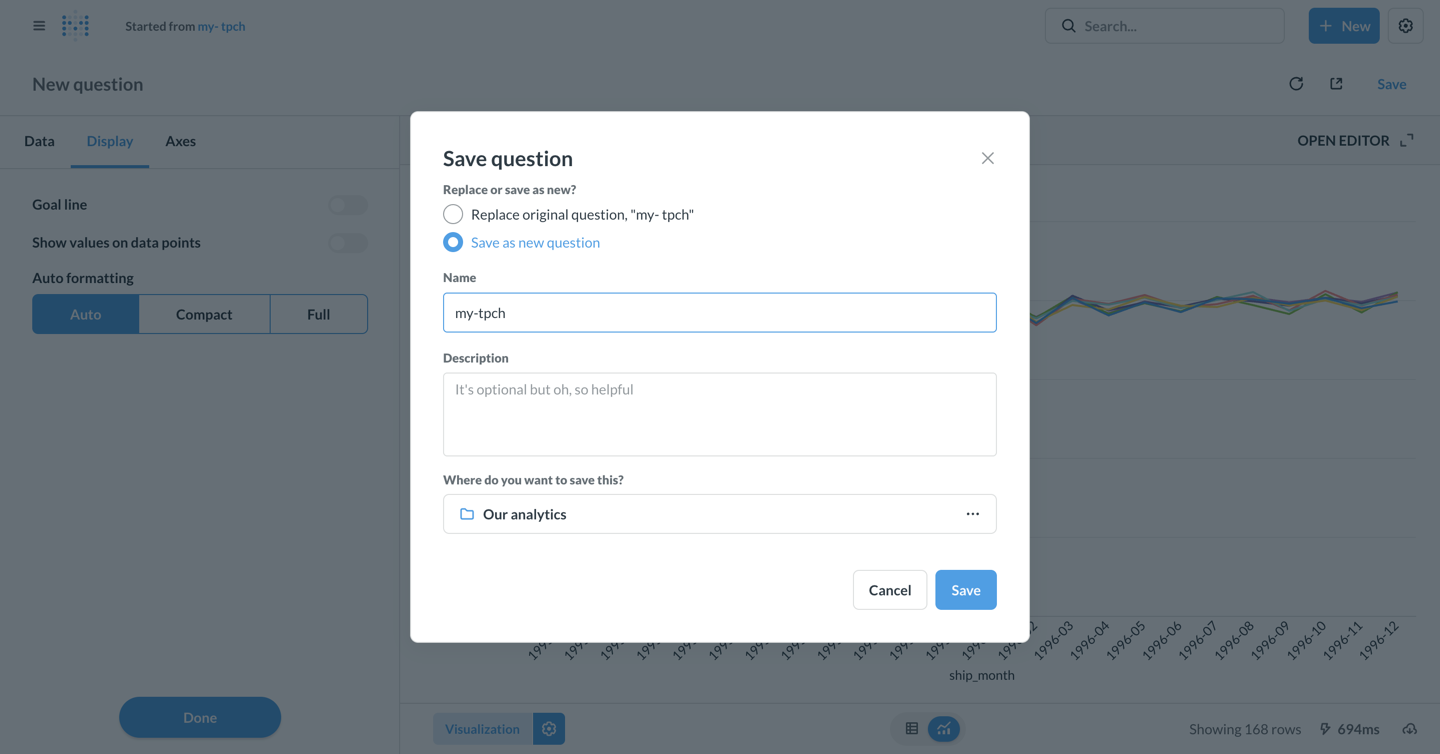
Creating a Dashboard
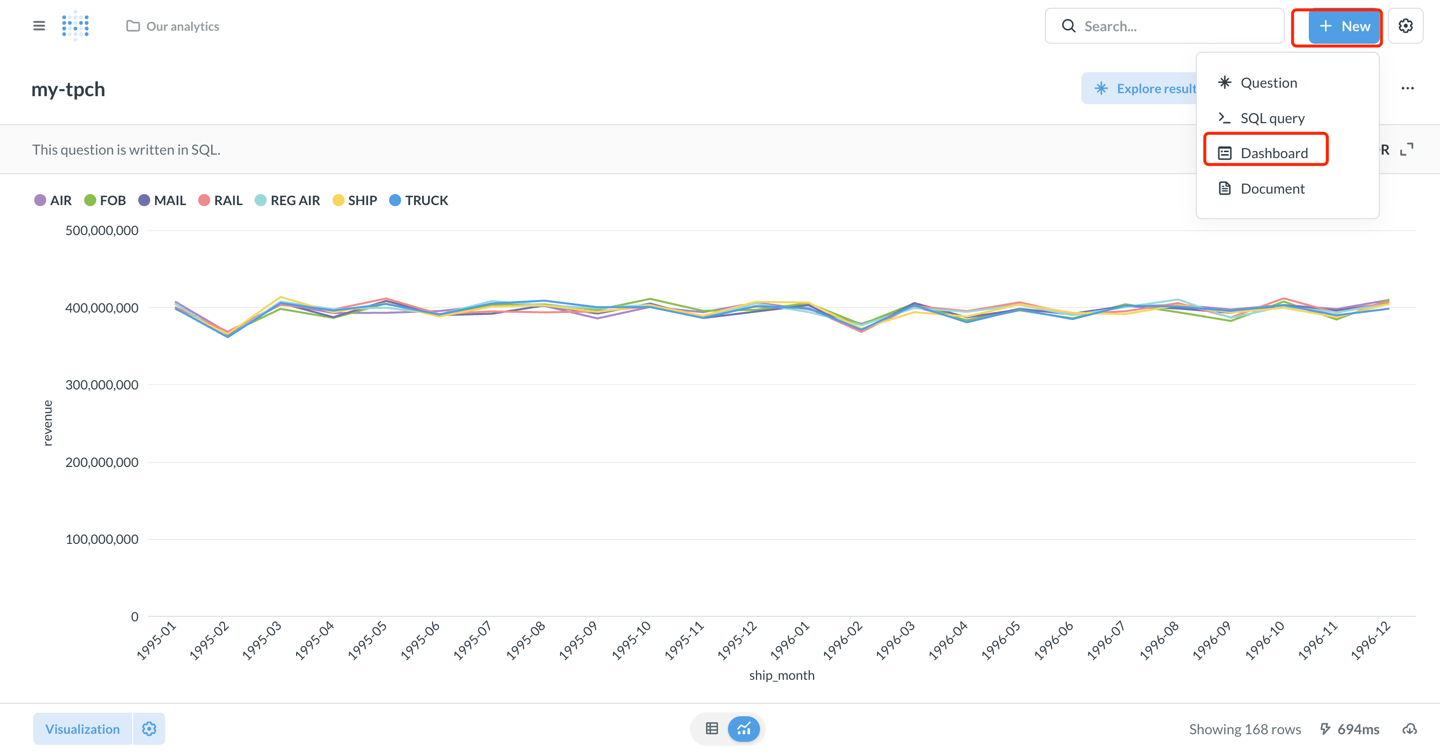
- Click + New → Dashboard to create a new dashboard. Enter the dashboard name: my-tpch
- Click Add a chart to add the saved question to the dashboard.
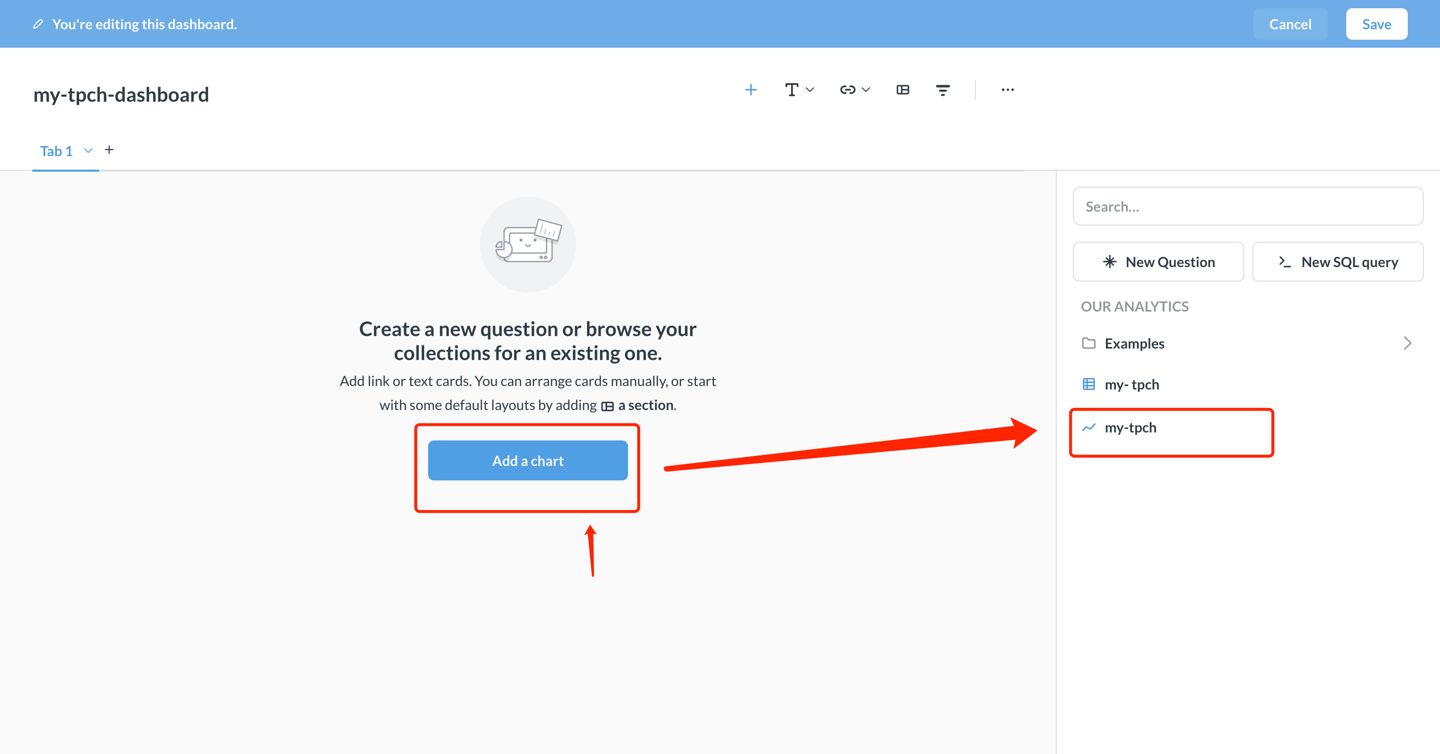
- Adjust the chart position and size, and click Save in the upper right corner to save the dashboard.
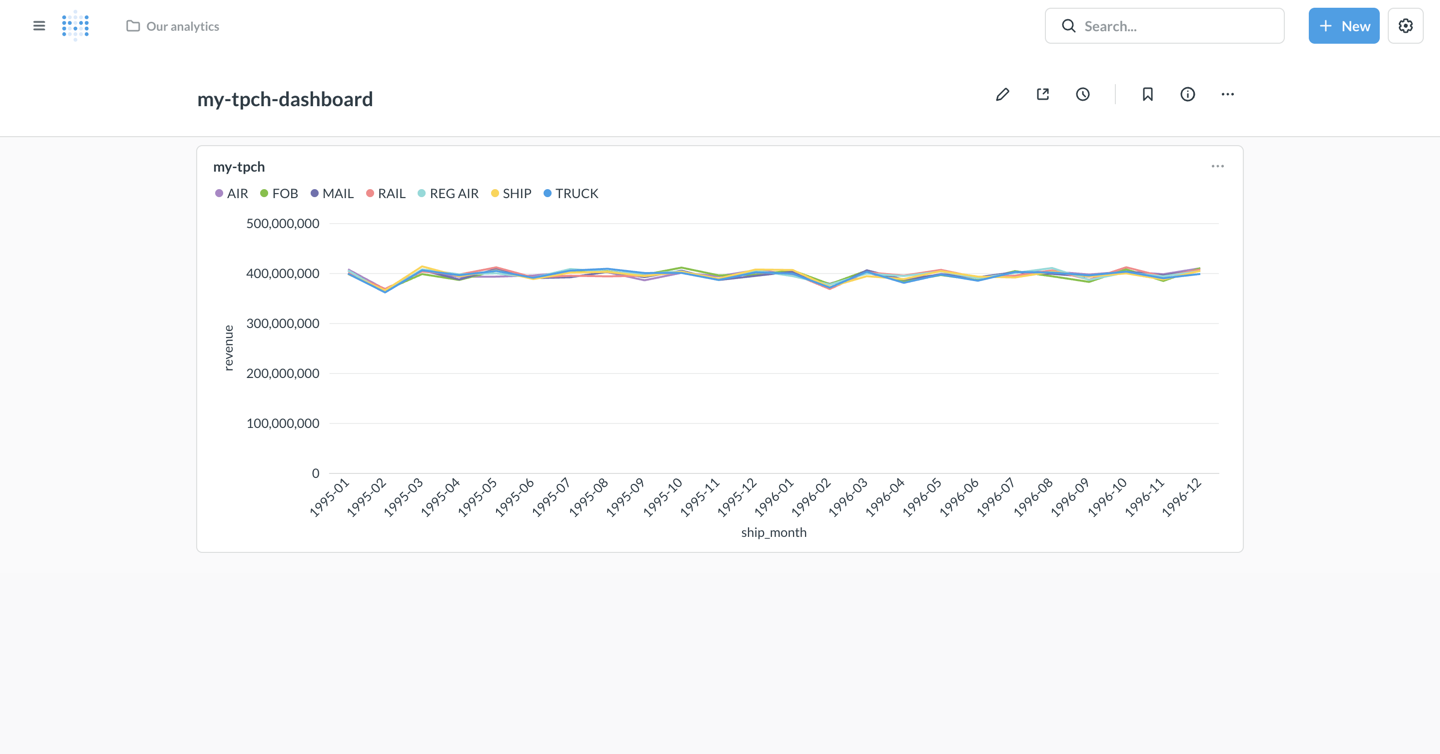
At this point, Metabase has been successfully connected to Apache Doris, and data analysis and visualization dashboard creation have been implemented!
Advanced Features
Accessing External Data Using Catalogs
Doris supports multi-catalog functionality, allowing queries to external data sources and cross-data source queries. When using it in Metabase:
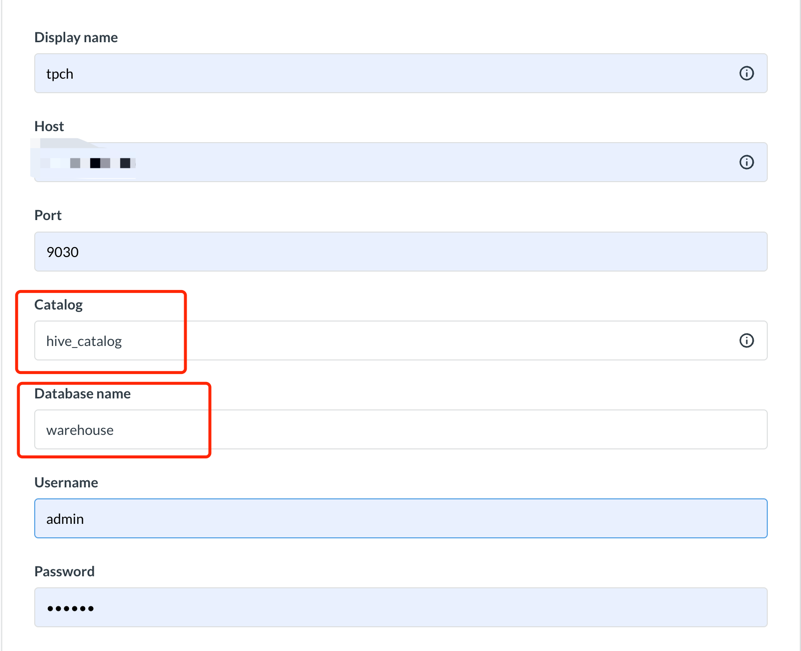
- Configure
Catalogin the Links configuration interface, and configure the external database under that catalog inDatabase, for example:
catalog: hive_catalog,database: warehouse- Access the warehouse database named hive_catalog
- Or explicitly specify the Catalog in an SQL query:
SELECT * FROM hive.warehouse.orders LIMIT 100;
Using Parameterized Queries
Metabase supports using variables in SQL queries, making it easy to create interactive dashboards:
SELECT
  l_shipmode,
  SUM(l_extendedprice * (1 - l_discount)) AS revenue
FROM lineitem
WHERE l_shipdate BETWEEN {{start_date}} AND {{end_date}}
  AND l_shipmode = {{ship_mode}}
GROUP BY l_shipmode
After saving, data can be dynamically filtered in the dashboard using dropdown menus or date pickers.
Performance Optimization Recommendations
-
Use Partition Clipping: Add a partition column filter condition to the WHERE clause.
WHERE date >= '2024-01-01' AND date < '2024-02-01' -
Utilize Materialized Views: For complex aggregation queries, creating materialized views in Doris can accelerate the query process.
-
Control Result Set Size: Use LIMIT to limit the number of rows returned, avoiding loading too much data at once.
-
Query Caching: Metabase automatically caches query results; setting appropriate cache times can improve performance.
Connection and Usage Tips
- Driver Installation: Ensure
doris.metabase-driver.jaris placed in the Metabasepluginsdirectory and restart Metabase. - Time Zone Settings: If you encounter time zone issues, add
serverTimezone=Asia/Shanghaito the JDBC connection string. - Partitioned Table Optimization: Creating appropriate Doris partitioned tables, dividing them by time and bucketing them, can effectively reduce the amount of data scanned in queries.
- Network Connection: It is recommended to use a VPC private connection to avoid security risks introduced by public network access.
- Access Control: Fine-tune Doris user account roles and access permissions, following the principle of least privilege.
- Metadata Synchronization: When Doris... When the table structure changes, manually synchronize it by clicking "Sync database schema now" on the Metabase management page.
- Performance Monitoring: For slow queries, you can use
SHOW QUERY PROFILEin Doris to analyze performance bottlenecks.
Data Type Display Anomalies
- Ensure you are using the latest version of the Doris Driver.
- Doris largeint types need to be explicitly converted in SQL.
SELECT CAST(large_int_col AS STRING) FROM table