Ranger-Doris Authorization
Apache Ranger is a security framework for monitoring, enabling services, and managing data security access on the Hadoop platform. After Ranger is enabled in Apache Doris, permission management moves from Doris internal GRANT statements to centralized configuration in Ranger, making it convenient to share the same permission system with Hive, HDFS, and other components.
This document explains how to install and configure the Ranger plugin for Doris, and how to define global, Catalog, database, table, column, row-level, and masking policies in Ranger.
Applicable Scenarios
| Scenario | Description |
|---|---|
| Unified permission control | Ranger is already used to manage Hive/HDFS, and you want Doris to reuse the same set of permission policies |
| Fine-grained authorization | You need fine-grained authorization and masking on columns, row-level data, and sensitive fields |
| Kerberos environment | Ranger Admin has Kerberos enabled, and Doris needs to pull policies with a Kerberos identity |
| Replace internal authorization | You want to retire Doris internal GRANT/REVOKE and let Ranger handle authorization centrally |
Prerequisites
- Apache Ranger Admin service is deployed (version 2.x or above is recommended) and accessible over HTTP/HTTPS.
- An Apache Doris cluster is deployed, and the FE/BE nodes can reach the Ranger Admin service.
- You have an administrator account for the Ranger WebUI to create service definitions and policies.
- Row-level filtering and data masking require Doris 2.1.3 or above; Compute Group and Storage Vault permissions require Doris 3.0.6 or above.
Configuration Flow Overview
- Install the Doris plugin on the Ranger server (upload the Jar and the service definition JSON).
- Create a Doris service in the Ranger WebUI and fill in the connection information.
- Configure
access_controller_type=ranger-dorison the Doris FE side and placeranger-doris-security.xml. - (Optional) If Ranger Admin has Kerberos enabled, merge
krb5.confand append UGI parameters to the configuration. - Restart the Doris cluster, configure policies for users in Ranger, and verify in Doris.
Install and Configure the Doris Ranger Plugin
Install the Plugin
-
Download the following files:
NoteYou must download the
ranger-doris-plugin-3.0.0-SNAPSHOT.jarfor the matching branch, otherwise it will not work. -
Place the downloaded files under the
ranger-plugins/dorisdirectory of the Ranger service, for example:/usr/local/service/ranger/ews/webapp/WEB-INF/classes/ranger-plugins/doris/ranger-doris-plugin-3.0.0-SNAPSHOT.jar
/usr/local/service/ranger/ews/webapp/WEB-INF/classes/ranger-plugins/doris/mysql-connector-java-8.0.25.jar -
Restart the Ranger service.
-
Download ranger-servicedef-doris.json.
NoteYou must download the
ranger-servicedef-doris.jsonfor the matching branch, otherwise it will not work. -
Run the following command to upload the service definition file to the Ranger service so that the Apache Doris plugin definition is registered:
curl -u user:password -X POST \
    -H "Accept: application/json" \
    -H "Content-Type: application/json" \
    http://172.21.0.32:6080/service/plugins/definitions \
    -d@ranger-servicedef-doris.json
Where:
- The username and password are the credentials used to log in to the Ranger WebUI.
- The service address and port can be found in the
ranger.service.http.portentry of theranger-admin-site.xmlconfiguration file.
If the command succeeds, it returns the service definition in JSON format, for example:
{
  "id": 207,
  "guid": "d3ff9e41-f9dd-4217-bb5f-3fa9996454b6",
  "isEnabled": true,
  "createdBy": "Admin",
  "updatedBy": "Admin",
  "createTime": 1705817398112,
  "updateTime": 1705817398112,
  "version": 1,
  "name": "doris",
  "displayName": "Apache Doris",
  "implClass": "org.apache.ranger.services.doris.RangerServiceDoris",
  "label": "Doris",
  "description": "Apache Doris",
  "options": {
    "enableDenyAndExceptionsInPolicies": "true"
  },
  ...
}
To recreate the definition, delete it with the following command and upload it again (where
207is theidreturned when the definition was created):curl -v -u user:password -X DELETE \
http://172.21.0.32:6080/service/plugins/definitions/207Before deletion, you need to remove the Doris service that was already created in the Ranger WebUI. You can also list the currently registered service definitions to obtain the
idwith the following command:curl -v -u user:password -X GET \
http://172.21.0.32:6080/service/plugins/definitions/
Configure the Plugin
After installation, open the Ranger WebUI. The Apache Doris plugin appears on the Service Manager page:
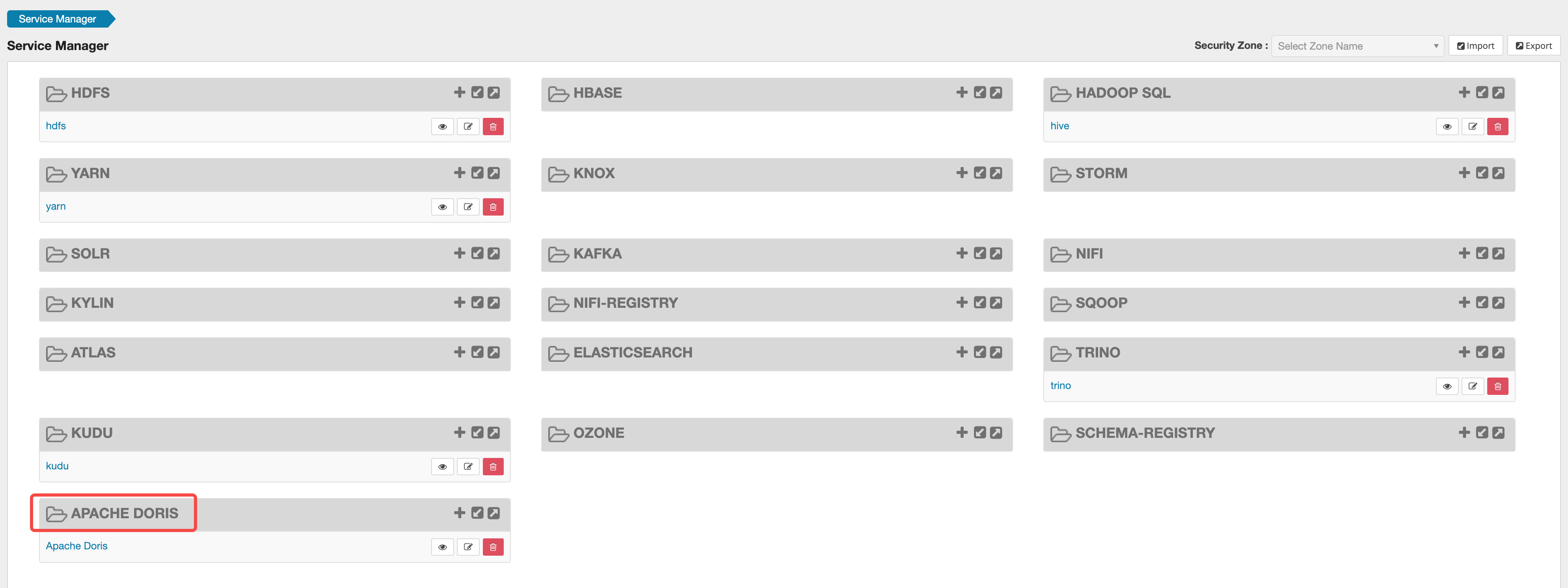
Click the + button next to the plugin to add a Doris service:
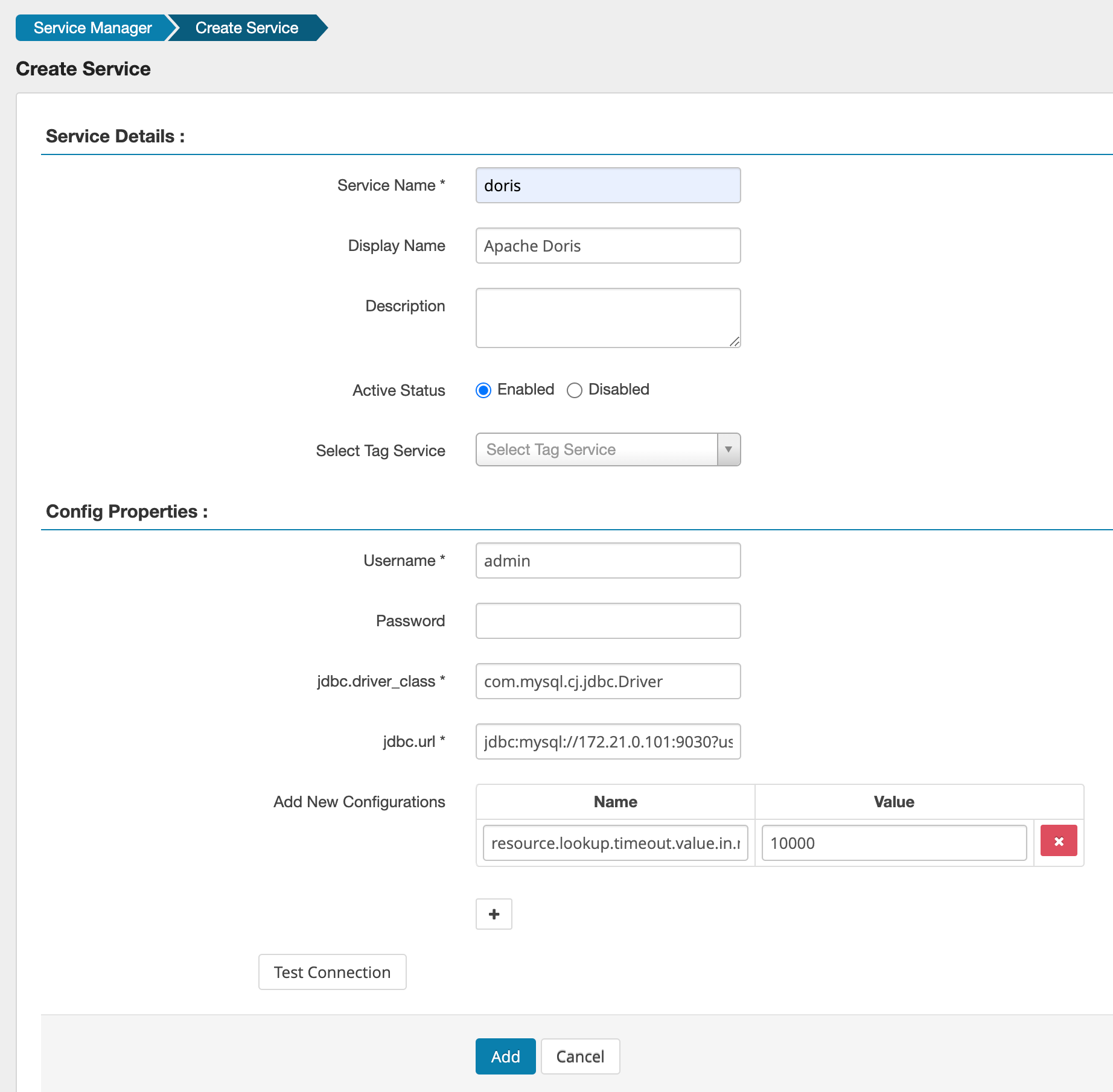
The parameters in the Config Properties section are as follows:
| Parameter | Description |
|---|---|
Service Name | Service name. Doris pulls policies based on this name, and it must match ranger.plugin.doris.service.name in ranger-doris-security.xml. doris is recommended. A mismatch prevents Doris from pulling policies, which causes authentication to fail |
Username / Password | Username and password of the Doris cluster. An Admin user is recommended |
jdbc.driver_class | JDBC driver used to connect to Doris, for example com.mysql.cj.jdbc.Driver |
jdbc.url | JDBC URL of the Doris cluster, for example jdbc:mysql://172.21.0.101:9030?useSSL=false |
resource.lookup.timeout.value.in.ms | Extra parameter, the timeout for fetching metadata. 10000 (that is, 10 seconds) is recommended |
You can click Test Connection to check connectivity.
If Doris is already started and fe.conf already has access_controller_type=ranger-doris configured, clicking Test Connection returns fail. This is because the Ranger authentication service has not yet been created and Doris cannot pull policies. This is expected; just proceed to create the service.
Then click Add to add the service. The newly created service appears under the Apache Doris plugin on the Service Manager page. Click the service to start configuring Ranger policies.
Enable Ranger on the Doris Side
Change the Doris Configuration
-
In the
fe/conf/fe.conffile, set the authentication method to Ranger:access_controller_type=ranger-doris -
Create a
ranger-doris-security.xmlfile under theconfdirectory of every FE node with the following content:<?xml version="1.0" encoding="UTF-8"?>
<?xml-stylesheet type="text/xsl" href="configuration.xsl"?>
<configuration>
<property>
<name>ranger.plugin.doris.policy.cache.dir</name>
<value>/path/to/ranger/cache/</value>
</property>
<property>
<name>ranger.plugin.doris.policy.pollIntervalMs</name>
<value>30000</value>
</property>
<property>
<name>ranger.plugin.doris.policy.rest.client.connection.timeoutMs</name>
<value>60000</value>
</property>
<property>
<name>ranger.plugin.doris.policy.rest.client.read.timeoutMs</name>
<value>60000</value>
</property>
<property>
<name>ranger.plugin.doris.policy.rest.url</name>
<value>http://172.21.0.32:6080</value>
</property>
<property>
<name>ranger.plugin.doris.policy.source.impl</name>
<value>org.apache.ranger.admin.client.RangerAdminRESTClient</value>
</property>
<property>
<name>ranger.plugin.doris.service.name</name>
<value>doris</value>
</property>
</configuration>The key configuration items to modify are:
Configuration item Description ranger.plugin.doris.policy.cache.dirStores the permission cache files fetched from the Ranger Server. This directory must be created manually and must exist ranger.plugin.doris.policy.rest.urlAddress of the Ranger Admin service. Replace with the actual address ranger.plugin.doris.service.nameMust match the service name created in the Ranger WebUI. Default is dorisranger.plugin.doris.policy.pollIntervalMsPolling interval for pulling policies, in milliseconds -
Start the cluster.
Configuration When Ranger Server Has Kerberos Enabled
When the Ranger Admin service itself has Kerberos authentication enabled, the Ranger Client in Doris needs to authenticate to Ranger Admin with a Kerberos identity when pulling policies. Otherwise, policy pulls fail and authentication does not take effect. You need to complete the two additional configuration steps below.
1. Merge krb5.conf
When the Doris Ranger Client performs Kerberos login, it uses the JVM Krb5LoginModule underneath, which reads the KDC address from /etc/krb5.conf on each FE/BE node. If your environment has multiple Kerberos realms at the same time (for example, the realm of the HDFS cluster differs from the realm of the cluster where Ranger Admin runs), you need to merge the KDC information of all realms into one /etc/krb5.conf file and deploy that file to all FE and BE nodes.
An example of the merged krb5.conf is as follows:
[libdefaults]
    default_realm = HADOOP.EXAMPLE.COM
    dns_lookup_realm = true
    dns_lookup_kdc = true

[realms]
    # Realm of the HDFS / Hive cluster
    HADOOP.EXAMPLE.COM = {
        kdc = hadoop-kdc.example.com:88
        admin_server = hadoop-kdc.example.com
    }
    # Realm of the cluster where Ranger Admin runs (merge it in if it differs from the one above)
    RANGER.EXAMPLE.COM = {
        kdc = ranger-kdc.example.com:88
        admin_server = ranger-kdc.example.com
    }

[domain_realm]
    hadoop-kdc.example.com = HADOOP.EXAMPLE.COM
    ranger-admin.example.com = RANGER.EXAMPLE.COM
After modifying or adding /etc/krb5.conf, you must restart all FE and BE nodes for the configuration to take effect.
2. Configure Kerberos UGI in ranger-hive-security.xml (or ranger-doris-security.xml)
Under the fe/conf/ directory of each FE node, locate (or create) ranger-hive-security.xml (when using Hive Ranger authentication) or ranger-doris-security.xml (when using Doris Ranger authentication), and append the following 4 configuration items inside <configuration>:
<!-- Enable UGI Kerberos login -->
<property>
    <name>ranger.plugin.hive.ugi.initialize</name>
    <value>true</value>
</property>
<!-- Login method: keytab -->
<property>
    <name>ranger.plugin.hive.ugi.login.type</name>
    <value>keytab</value>
</property>
<!-- Principal in the keytab file -->
<property>
    <name>ranger.plugin.hive.ugi.keytab.principal</name>
    <value>hive/hostname@RANGER.EXAMPLE.COM</value>
</property>
<!-- Path to the keytab file (must be deployed to every FE node) -->
<property>
    <name>ranger.plugin.hive.ugi.keytab.file</name>
    <value>/etc/security/keytabs/hive.keytab</value>
</property>
The meaning of each configuration item is as follows:
| Configuration item | Description |
|---|---|
ranger.plugin.hive.ugi.initialize | Whether to initialize UGI Kerberos login when the plugin is loaded |
ranger.plugin.hive.ugi.login.type | Login method. Fixed to keytab |
ranger.plugin.hive.ugi.keytab.principal | The principal that actually exists in the keytab file, for example hive/your-host@YOUR-REALM.COM. You can check it with klist -kt /path/to/hive.keytab |
ranger.plugin.hive.ugi.keytab.file | Absolute path to the keytab file. Make sure the user running the Doris FE process has read permission on this file (chmod 400 is recommended) |
- When using Doris Ranger authentication (
ranger-doris-security.xml), replacehivein the configuration above withdoris, for exampleranger.plugin.doris.ugi.initialize. - After the configuration is complete, you must restart FE for it to take effect.
The Ranger Plugin embedded in Doris currently relies on Hadoop's UserGroupInformation (UGI) for Kerberos login. Because the JVM process typically shares a single global login user state, when you configure multiple Kerberos-enabled Ranger Catalogs in Doris (with different principals), UGIs overwrite each other.
Specific behavior:
- After Catalog A is initialized and logs in with
keytab_A, the global UGI isPrincipal_A. - Then Catalog B is initialized and logs in with
keytab_B, and the global UGI is overwritten toPrincipal_B. - When the background thread of the Ranger plugin for Catalog A then pulls permission policies from Ranger Admin, it incorrectly carries the ticket of
Principal_B, which causes authentication failures and errors when pulling policies.
Current recommendation: For all Kerberos data sources with Ranger enabled in the same Doris cluster, plan them together and use the same Kerberos principal and the same keytab file to avoid authentication failures caused by mutual overwrite.
Permission Examples
Authorize a Doris user with the following steps:
- Create
user1in Doris. - In Doris, first use the
adminuser to create a Catalog:hive. - Create
user1in Ranger. At present, Ranger cannot automatically sync users from Doris, and Doris cannot sync users from Ranger either, so you need to create users manually. Just keep the name the same as in Doris. For the steps to create a user in Ranger, see the Ranger official documentation: create the user underSettings -> Users.
The permission scopes that Ranger can configure for Doris are listed in the following table:
| Permission scope | Equivalent Doris GRANT statement | Selection method |
|---|---|---|
| Global permission | grant select_priv on *.*.* to user1 | Select global in the dropdown at the same level as Catalog; the input box only accepts * |
| Catalog permission | grant select_priv on hive.*.* to user1 | Select the target Catalog in the Catalog dropdown |
| Database permission | grant select_priv on hive.tpch.* to user1 | Specify Catalog and Database |
| Table permission | grant select_priv on hive.tpch.user to user1 | Specify Catalog, Database, and table |
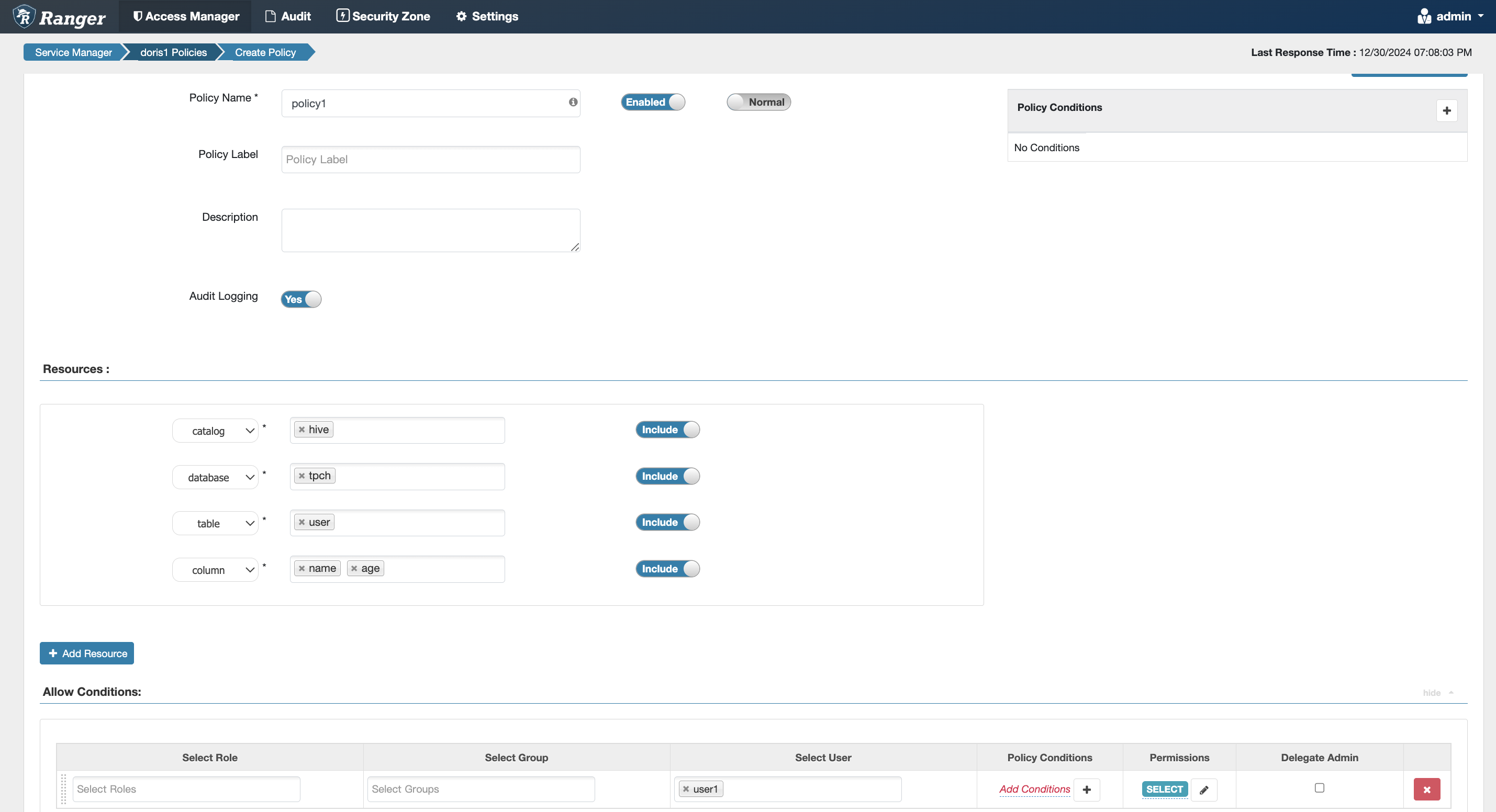
| Column permission | grant select_priv(name,age) on hive.tpch.user to user1 | Select columns on top of the table permission |
| Resource permission | grant usage_priv on resource 'resource1' to user1 | Select resource in the dropdown at the same level as Catalog |
| Workload Group permission | grant usage_priv on workload group 'group1' to user1 | Select workload group in the dropdown at the same level as Catalog |
| Compute Group permission (3.0.6+) | grant usage_priv on compute group 'group1' to user1 | Select compute group in the dropdown at the same level as Catalog |
| Storage Vault permission (3.0.6+) | grant usage_priv on storage vault 'vault1' to user1 | Select storage vault in the dropdown at the same level as Catalog |
The Ranger configuration example for each permission scope is given below.
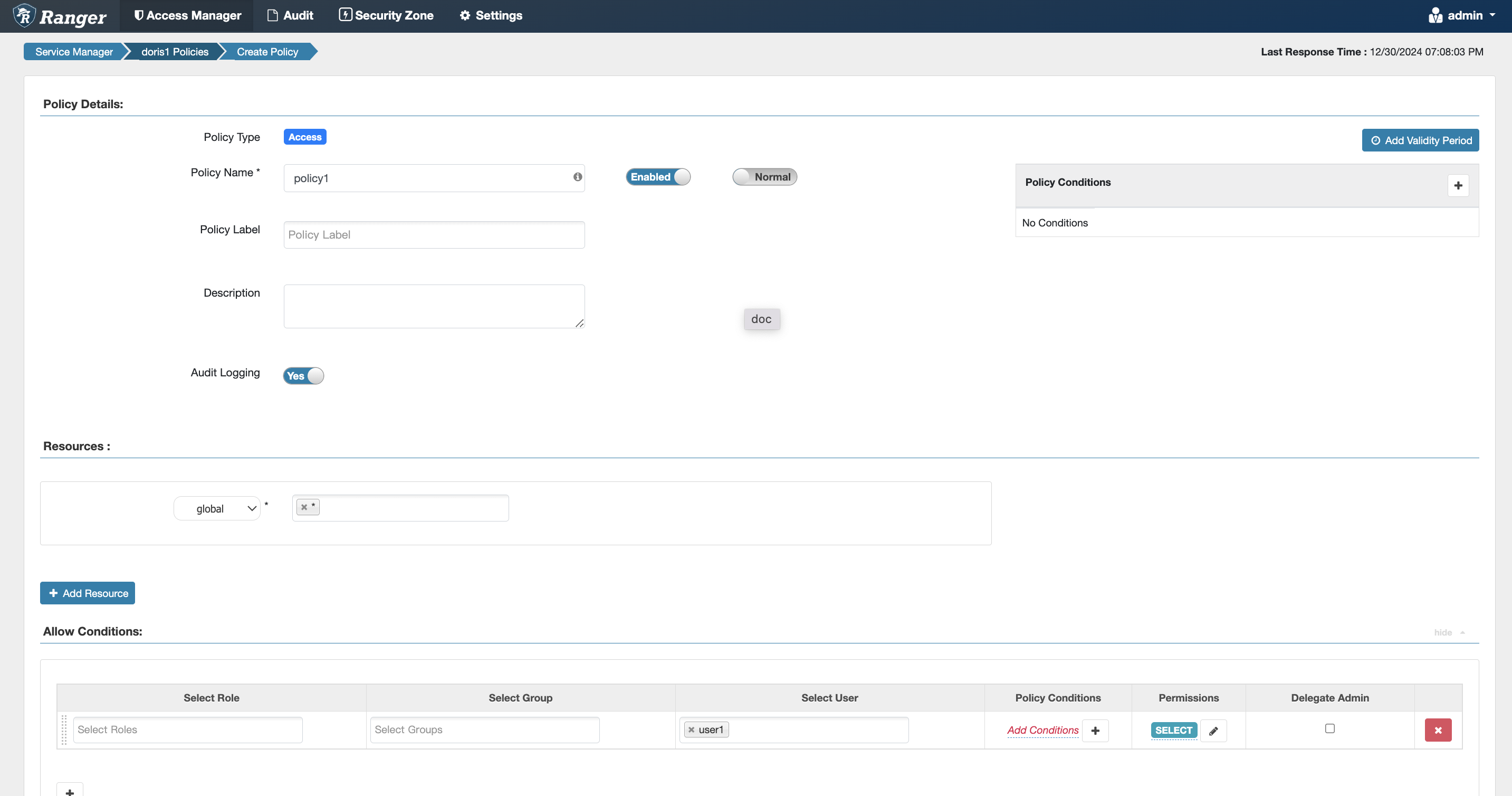
Global Permission
Equivalent to the Doris internal authorization statement grant select_priv on *.*.* to user1:
- The
globaloption is available in the dropdown at the same level as Catalog. - The input box only accepts
*.
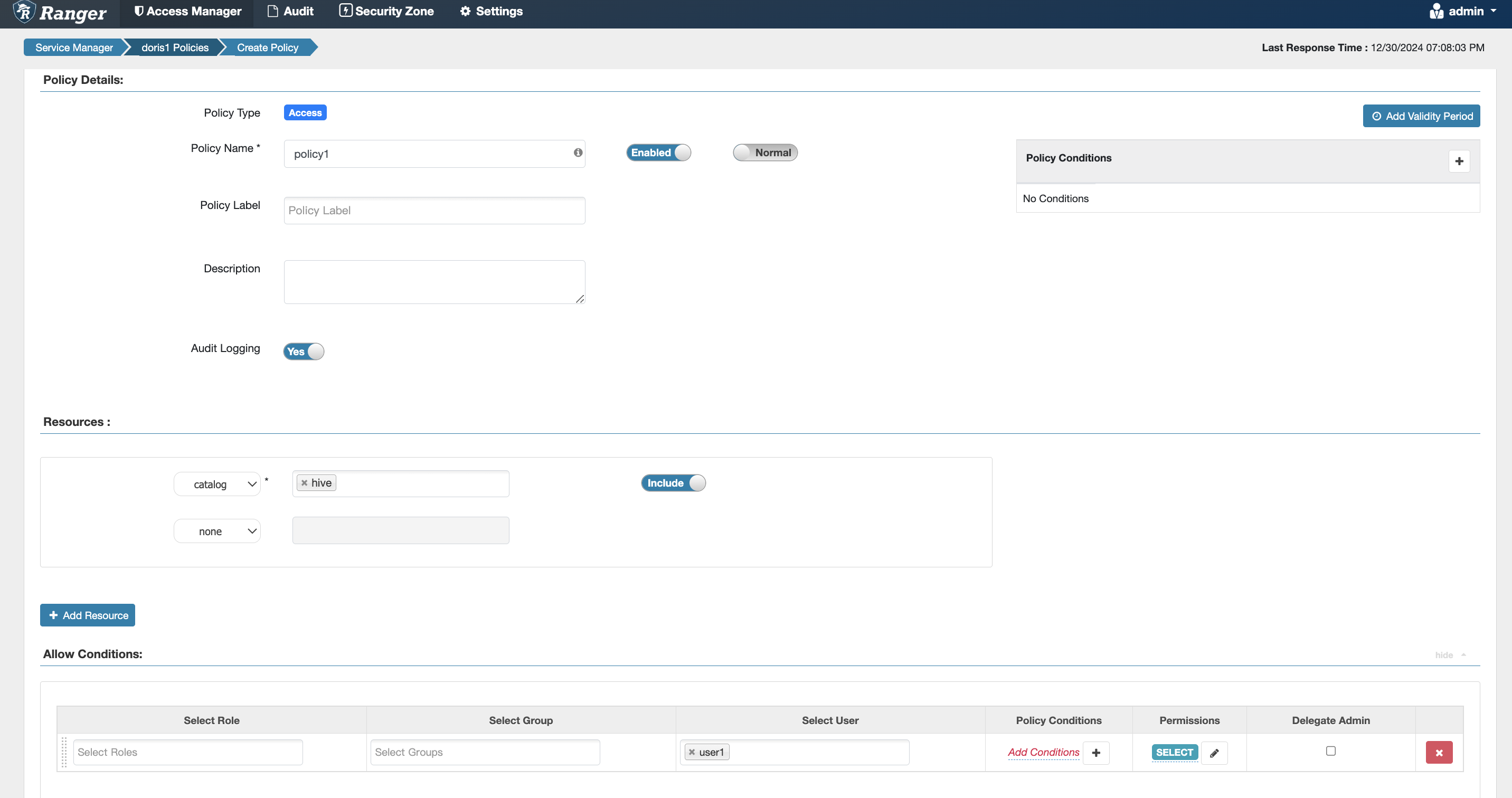
Catalog Permission
Equivalent to the Doris internal authorization statement grant select_priv on hive.*.* to user1:
Database Permission
Equivalent to the Doris internal authorization statement grant select_priv on hive.tpch.* to user1:
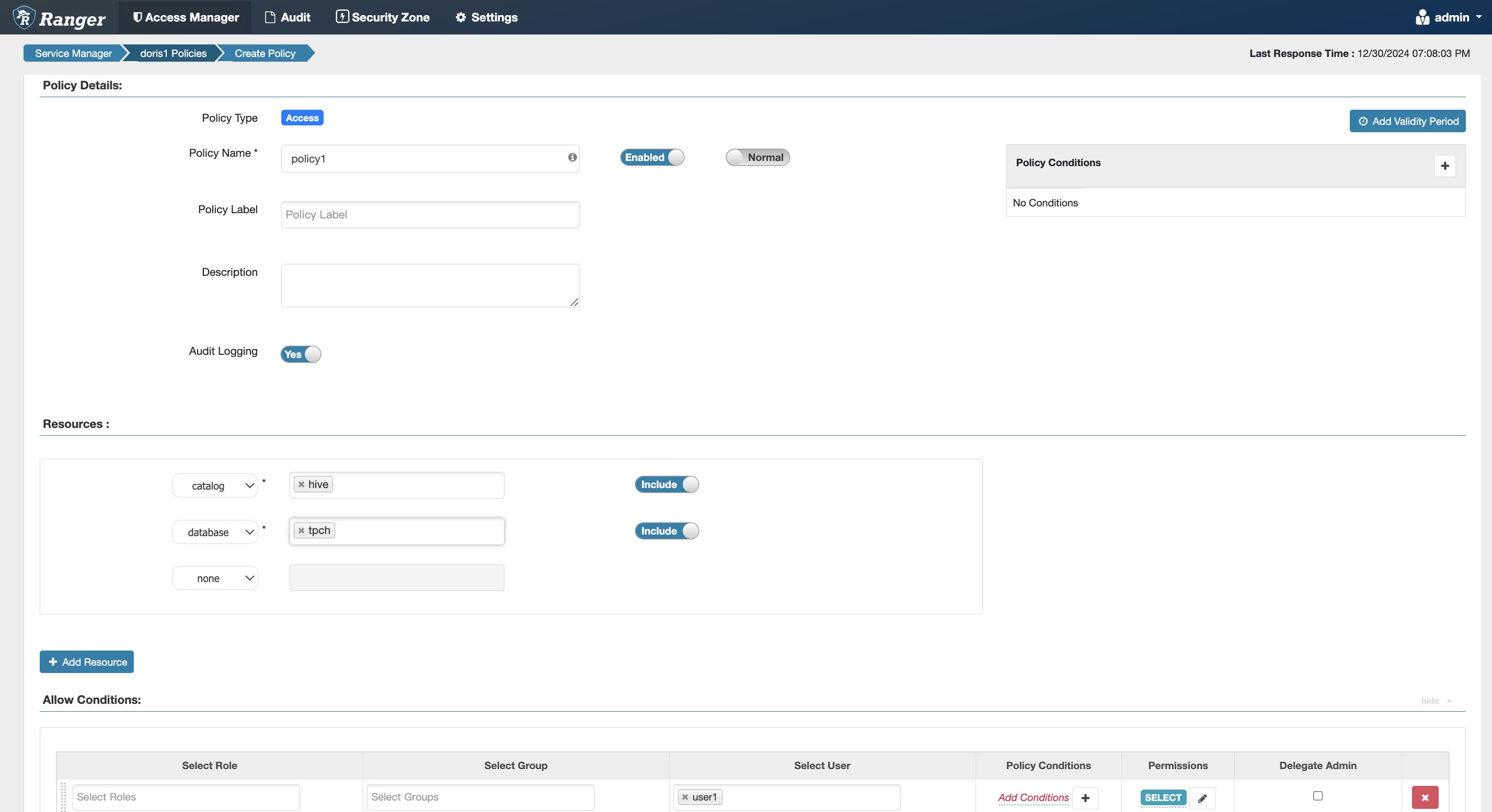
Table Permission
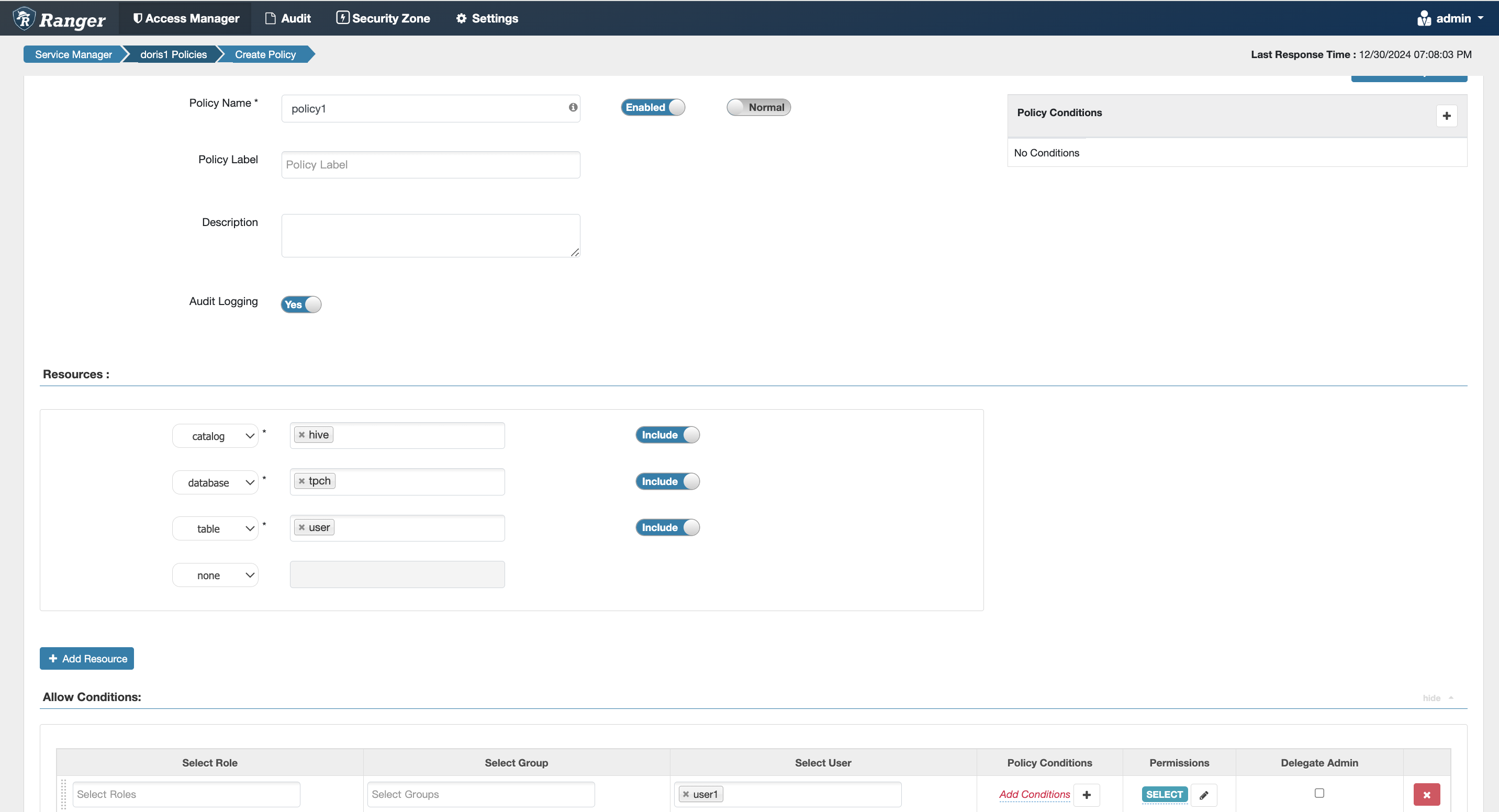
Here, table refers generically to tables, views, and asynchronous materialized views.
Equivalent to the Doris internal authorization statement grant select_priv on hive.tpch.user to user1:
Column Permission
Equivalent to the Doris internal authorization statement grant select_priv(name,age) on hive.tpch.user to user1:
Resource Permission
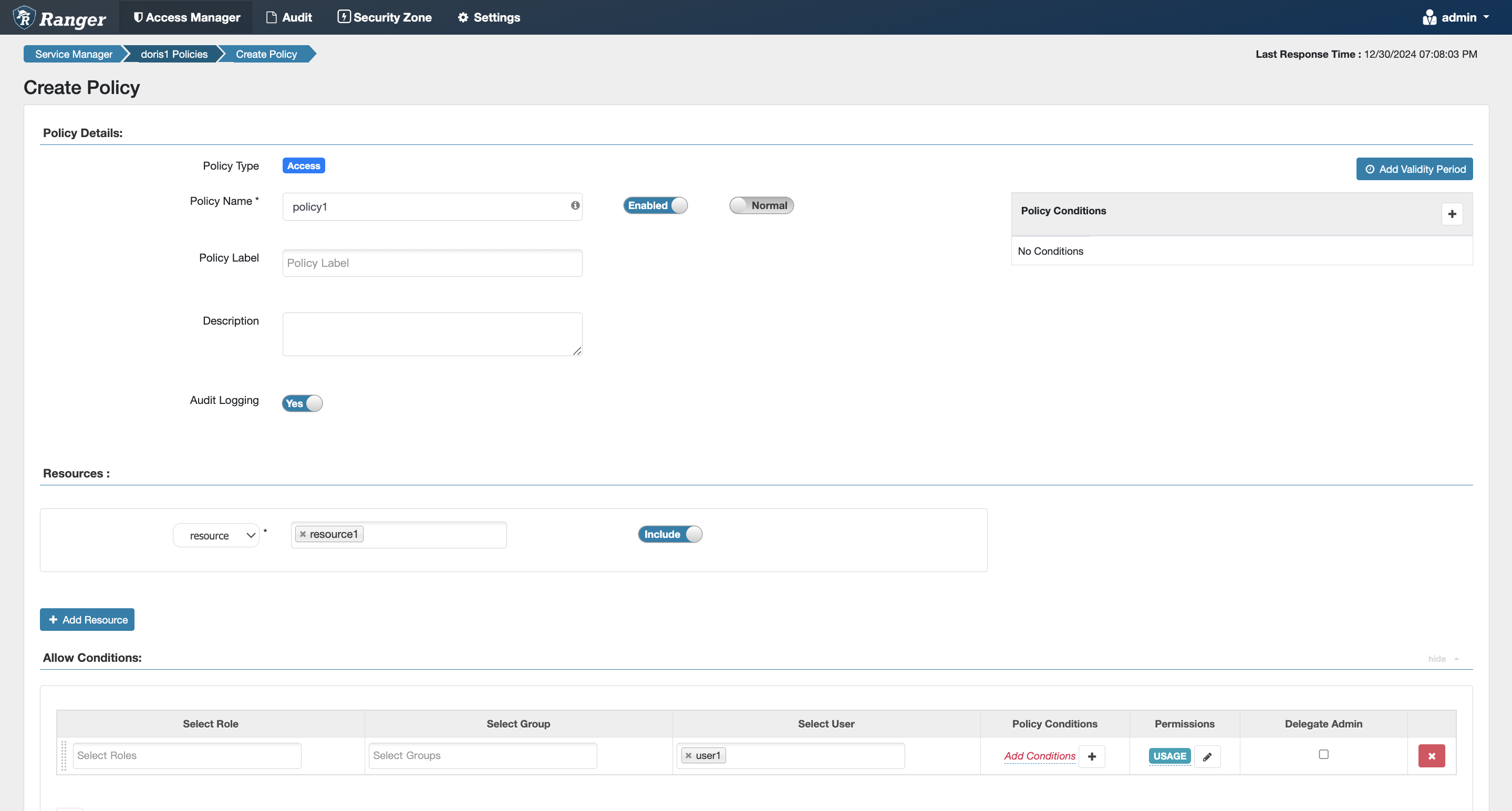
Equivalent to the Doris internal authorization statement grant usage_priv on resource 'resource1' to user1:
- The
resourceoption is available in the dropdown at the same level as Catalog.
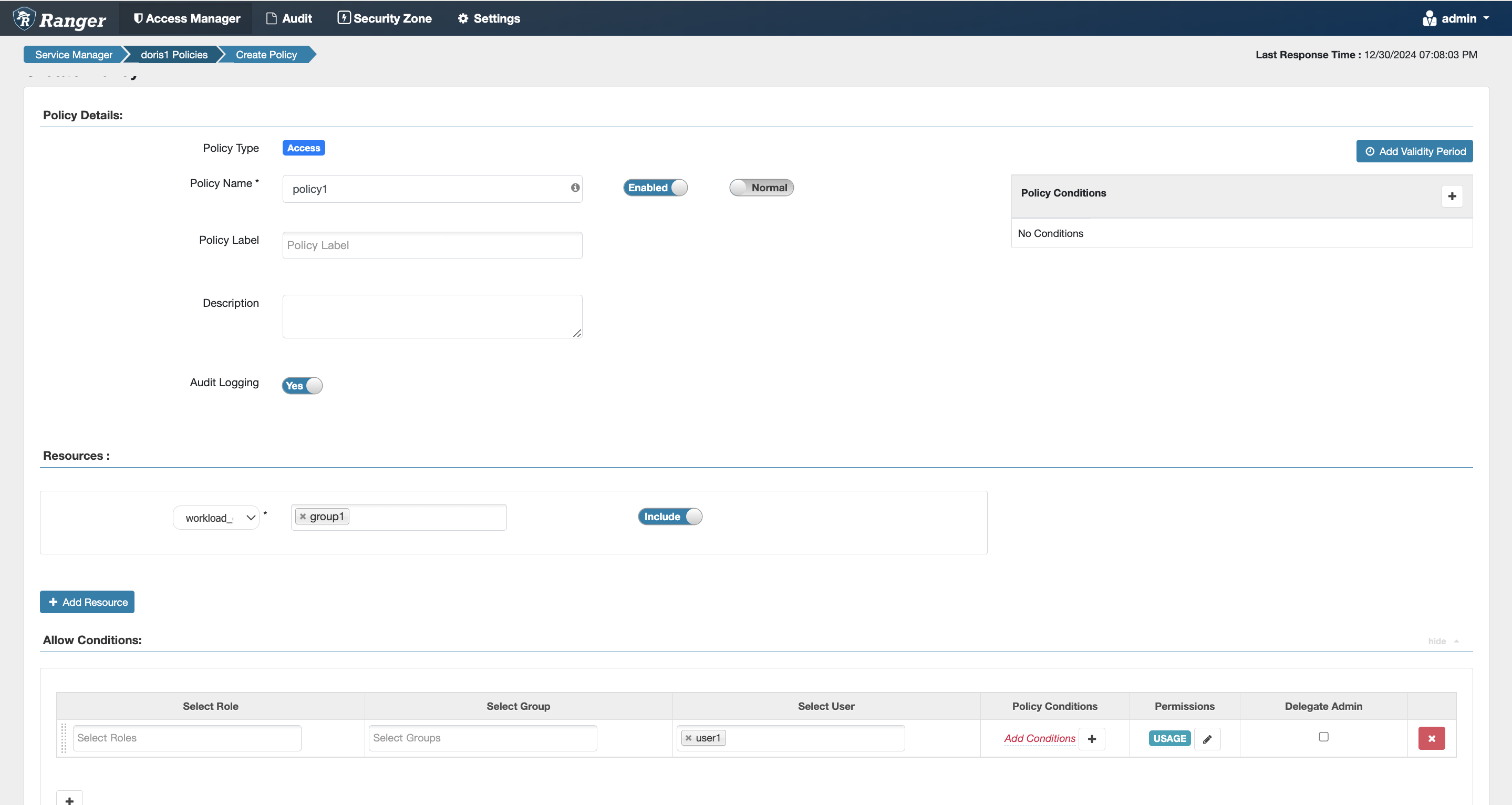
Workload Group Permission
Equivalent to the Doris internal authorization statement grant usage_priv on workload group 'group1' to user1:
- The
workload groupoption is available in the dropdown at the same level as Catalog.
Compute Group Permission
Supported since version 3.0.6.
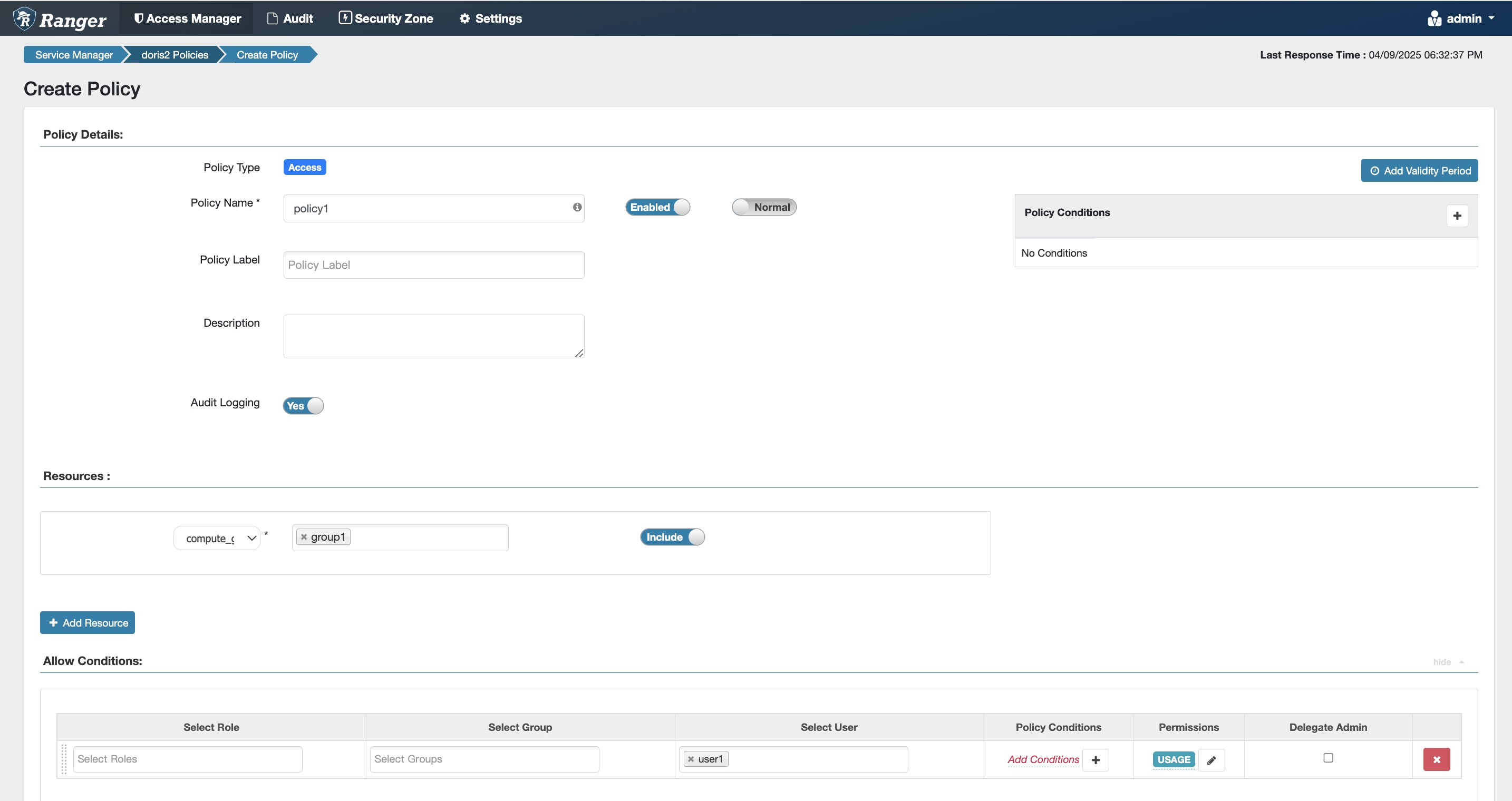
Equivalent to the Doris internal authorization statement grant usage_priv on compute group 'group1' to user1:
- The
compute groupoption is available in the dropdown at the same level as Catalog.
Storage Vault Permission
Supported since version 3.0.6.
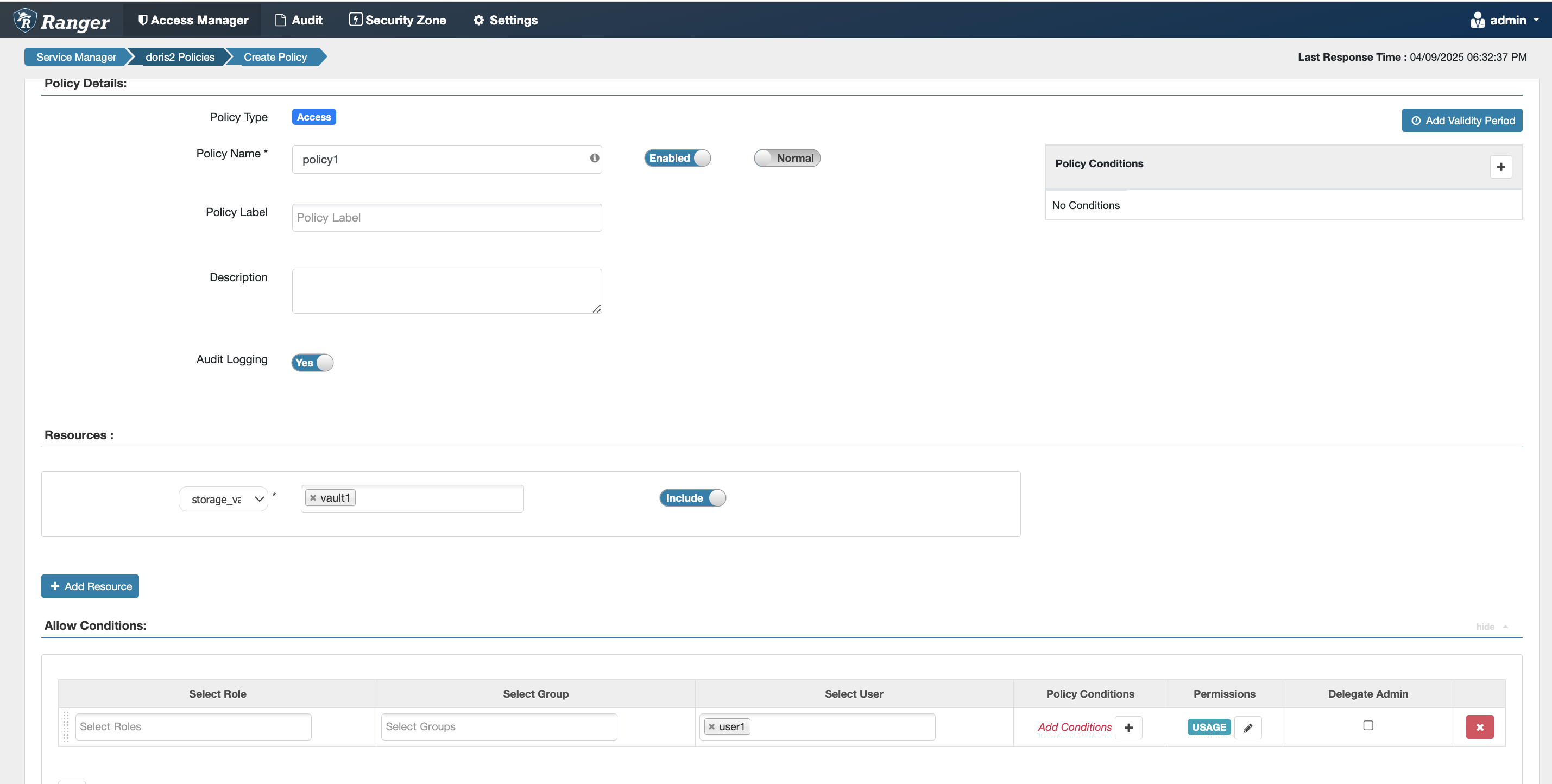
Equivalent to the Doris internal authorization statement grant usage_priv on storage vault 'vault1' to user1:
- The
storage vaultoption is available in the dropdown at the same level as Catalog.
Row Permission Example
Supported since version 2.1.3.
-
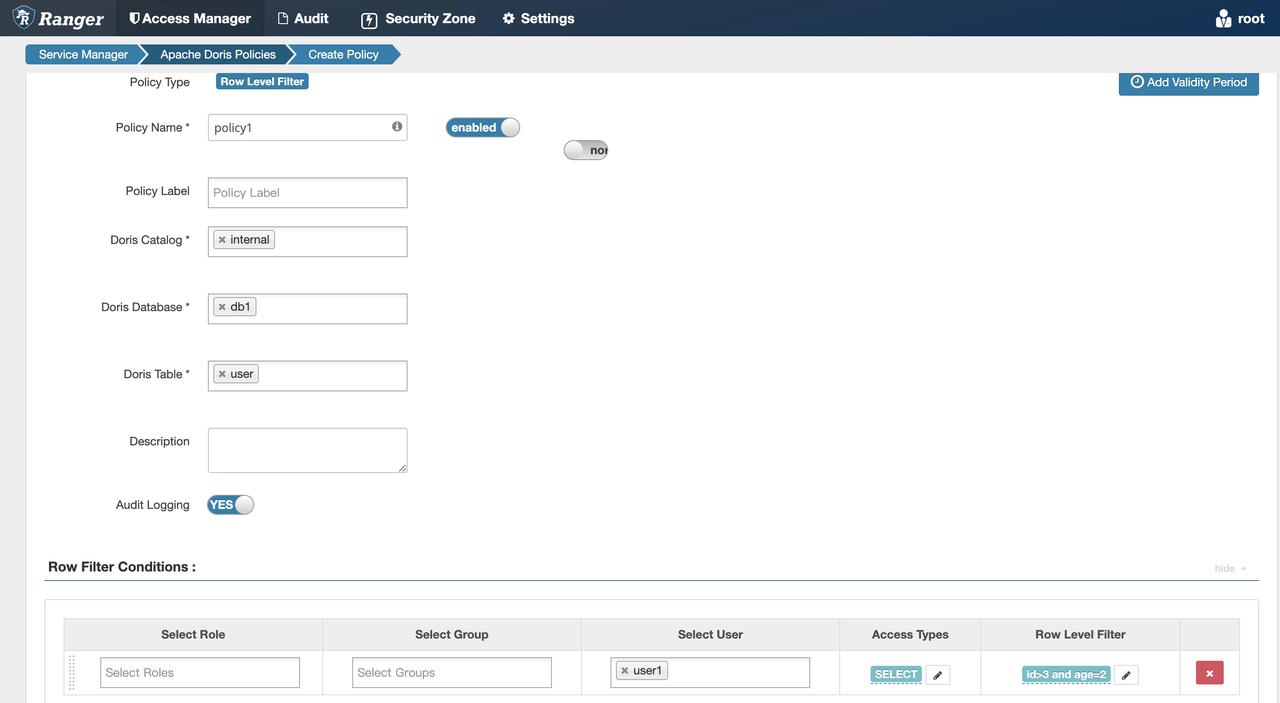
Following Permission Examples, grant
user1theselectpermission on theinternal.db1.usertable. -
Add a Row Level Filter policy in Ranger:
-
Log in to Doris as
user1. Runselect * from internal.db1.user. You can only see rows that satisfyid > 3andage = 2.
Data Masking Example
Supported since version 2.1.3.
-
Following Permission Examples, grant
user1theselectpermission on theinternal.db1.usertable. -
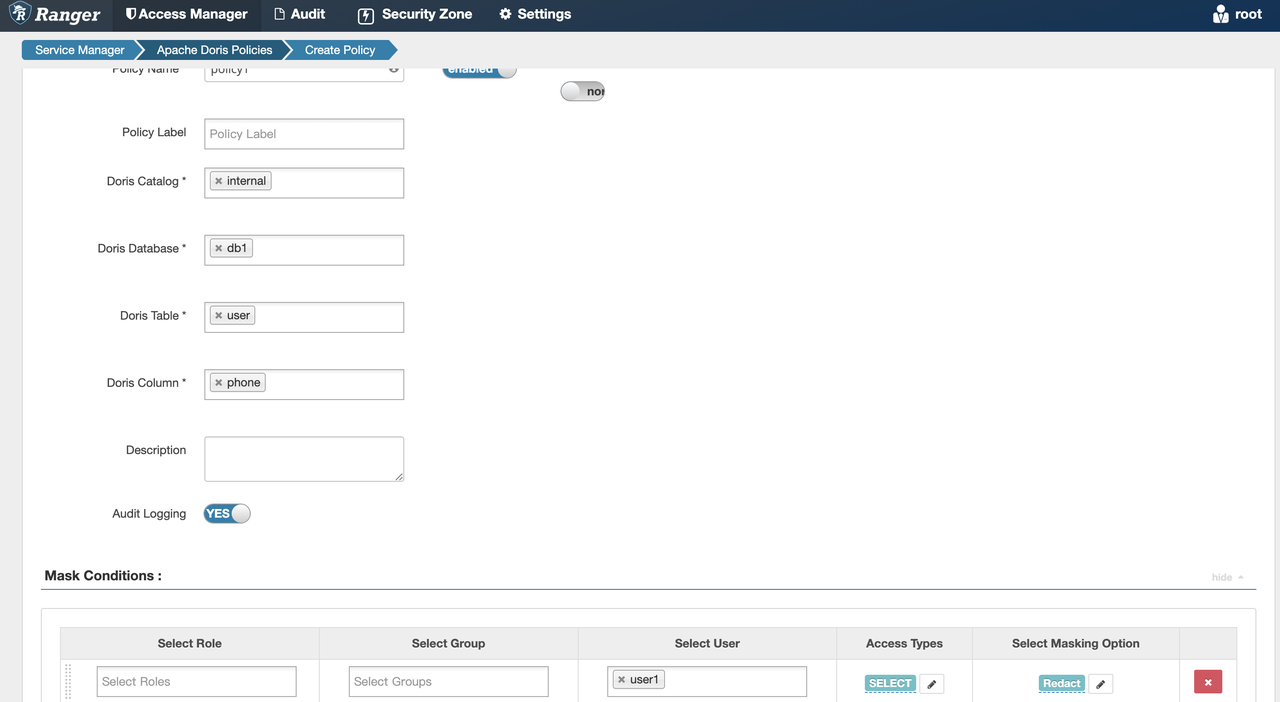
Add a Masking policy in Ranger:
-
Log in to Doris as
user1. Runselect * from internal.db1.user. Thephonefield appears masked according to the specified rule.
Common Issues
Q: Ranger access fails. How can I view the logs?
Create a log4j.properties file under the conf directory of every FE with the following content:
log4j.rootLogger = warn,stdout,D

log4j.appender.stdout = org.apache.log4j.ConsoleAppender
log4j.appender.stdout.Target = System.out
log4j.appender.stdout.layout = org.apache.log4j.PatternLayout
log4j.appender.stdout.layout.ConversionPattern = [%-5p] %d{yyyy-MM-dd HH:mm:ss,SSS} method:%l%n%m%n

log4j.appender.D = org.apache.log4j.DailyRollingFileAppender
log4j.appender.D.File = /path/to/fe/log/ranger.log
log4j.appender.D.Append = true
log4j.appender.D.Threshold = INFO
log4j.appender.D.layout = org.apache.log4j.PatternLayout
log4j.appender.D.layout.ConversionPattern = %-d{yyyy-MM-dd HH:mm:ss}  [ %t:%r ] - [ %p ]  %m%n
Where:
- Change
log4j.appender.D.Fileto the actual value, used to store the Ranger plugin logs. - Adjust the log level of
log4j.rootLoggeras needed (such asdebugorinfo). Note thatdebugis only for debugging and must not be used in production, otherwise the log volume becomes very large and authentication performance degrades.
Q: A Row Level Filter policy is configured, but the user gets a permission error when querying. Why?
A Row Level Filter policy only restricts which rows a user can access in a table. You still need to grant the user an ACCESS POLICY.
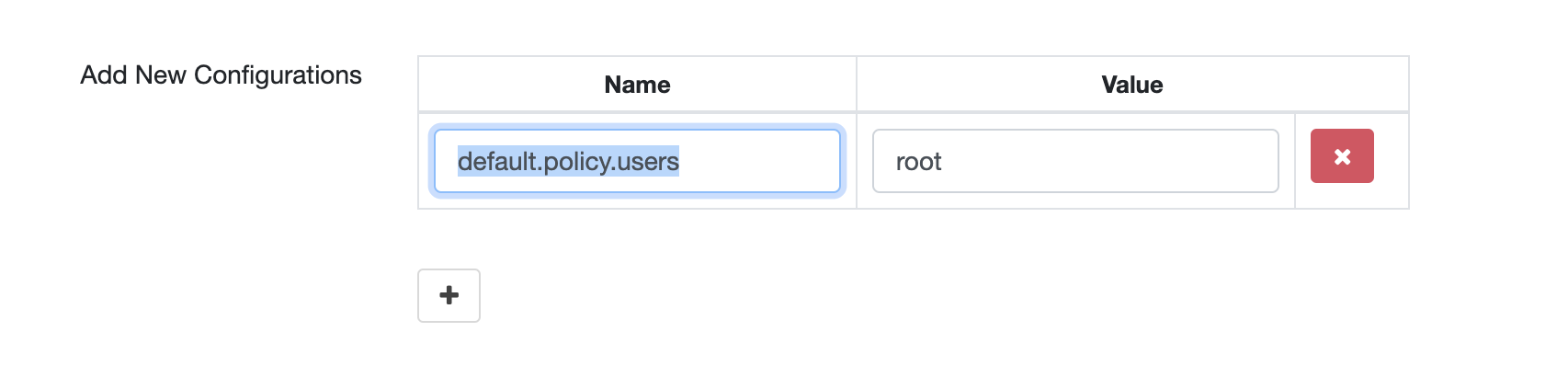
Q: After a service is created, only the admin user has permissions by default, and the root user does not. How do I fix it?
As shown in the figure, when creating the service, add the default.policy.users configuration. To grant full permissions to multiple users, separate them with ,.
Q: After Ranger authentication is enabled, does Doris internal authorization still work?
No. You also cannot create or delete roles. All permissions must be configured in Ranger.