Amazon RDS PostgreSQL
Doris streaming ingestion supports synchronizing data from Amazon RDS PostgreSQL 14 and above. Before starting a sync task, you must enable Logical Replication on the RDS instance and complete the configuration of the sync user, permissions, and Publication.
This document is intended for RDS PostgreSQL instance administrators and describes the prerequisite steps required for Doris streaming ingestion.
Pre-check Checklist
Before you start the configuration, confirm the following conditions:
| Check item | Requirement |
|---|---|
| RDS PostgreSQL version | 14 and above |
| Operation permissions | AWS permissions to modify parameter groups and restart the instance |
| Database permissions | Permissions to create users, grant privileges, and create Publications |
| Maintenance window | An off-peak window has been planned (modifying logical replication parameters requires restarting the instance) |
Configuration Flow Overview
The overall configuration flow is as follows:
- Check the current status of
rds.logical_replication - Create and configure a custom parameter group (if not enabled)
- Apply the parameter group to the instance and restart it
- Create the Doris sync user and grant privileges
- Create the Publication for Doris to subscribe to
Step 1: Check the Current Configuration
Purpose: Confirm whether logical replication is currently enabled on the RDS instance, and decide whether the parameter group needs to be modified.
After connecting to the RDS instance, run the following SQL:
SHOW rds.logical_replication;
Choose the next path based on the result:
| Returned value | Meaning | Next step |
|---|---|---|
on | Logical replication is enabled | Skip to Step 4: Create the Sync User |
off | Logical replication is not enabled | Continue with Step 2 |
Step 2: Configure the Parameter Group
Purpose: Create a custom parameter group and set rds.logical_replication to enabled.
Steps:
-
Log in to the AWS RDS console.
-
In the left navigation pane, choose Parameter groups, and click Create parameter group.
-
Select the PostgreSQL version family that matches the target instance, and create a new parameter group.
-
Edit the parameter group, search for
rds.logical_replication, and set its value to1: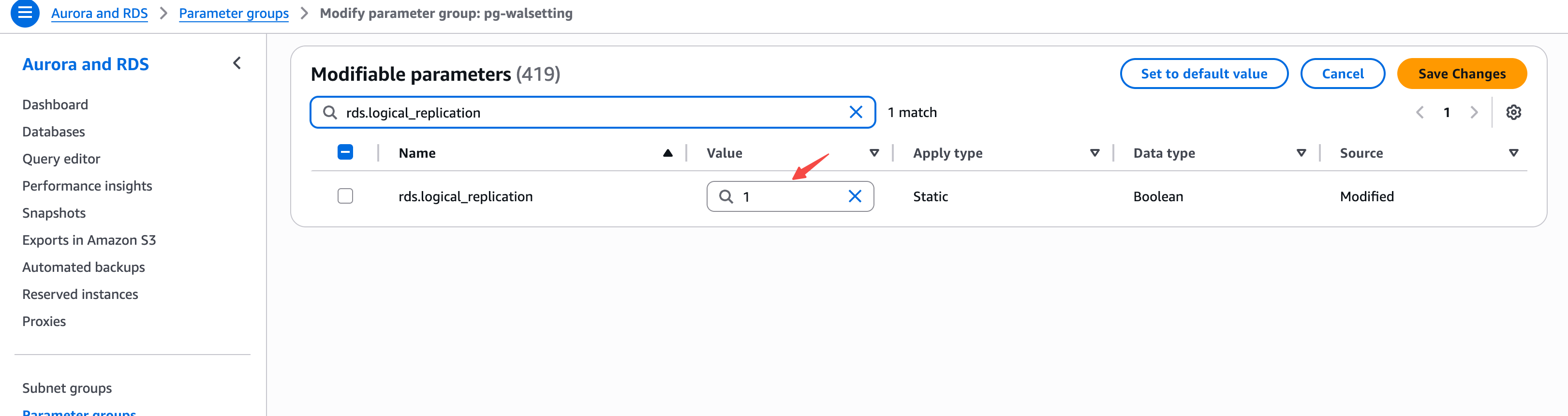
-
Click Save Changes to save.
Key parameter description:
| Parameter | Value | Description |
|---|---|---|
rds.logical_replication | 1 | Enables logical replication; equivalent to setting wal_level to logical |
Step 3: Apply the Parameter Group and Restart
Purpose: Bind the new parameter group to the RDS instance and restart it to make the configuration take effect.
Steps:
- In the RDS console, select the target instance and click Modify.
- In DB parameter group, select the parameter group created in Step 2.
- Select Apply immediately to apply the change immediately.
- Restart the RDS instance to make the configuration take effect.
Modifying the rds.logical_replication parameter requires restarting the RDS instance to take effect. Perform this operation during off-peak hours.
Step 4: Create the Sync User
Purpose: Create a database account dedicated to Doris streaming ingestion, and grant the required read and replication privileges.
1. Create the User
CREATE USER doris_sync PASSWORD '<password>';
2. Grant Schema Access Privileges
The following uses the public schema as an example. Replace it with the target schema as needed:
GRANT USAGE ON SCHEMA "public" TO doris_sync;
GRANT SELECT ON ALL TABLES IN SCHEMA "public" TO doris_sync;
ALTER DEFAULT PRIVILEGES IN SCHEMA "public" GRANT SELECT ON TABLES TO doris_sync;
3. Grant Replication Privileges
GRANT rds_replication TO doris_sync;
Amazon RDS PostgreSQL uses the rds_replication role to grant replication privileges, instead of the standard PostgreSQL REPLICATION attribute.
Privilege overview:
| Privilege | Purpose |
|---|---|
USAGE ON SCHEMA | Allows access to the specified schema |
SELECT ON ALL TABLES | Allows reading all existing tables in the schema |
ALTER DEFAULT PRIVILEGES ... SELECT | Automatically grants SELECT privilege on tables added in the future |
rds_replication | The role required to perform logical replication in RDS |
Step 5: Create the Publication
Purpose: Create the Publication that Doris subscribes to.
Run the following SQL:
CREATE PUBLICATION dbz_publication FOR ALL TABLES;
Currently, Doris only supports a Publication named dbz_publication, and it must be created with FOR ALL TABLES. Custom Publication names or specifying only a subset of tables are not supported yet.
Note: If the sync user has superuser privileges (such as the
rds_superuserrole), Doris will automatically create this Publication when the task starts, and you do not need to perform this step manually.
FAQ
Q1: If SHOW rds.logical_replication; returns on, do I still need to restart the instance?
No. on means logical replication is already in effect, and you can skip directly to Step 4: Create the Sync User.
Q2: Can I use a Publication with a different name?
No. Doris currently only supports a Publication named dbz_publication, and it must be created with FOR ALL TABLES.
Q3: Is it required to use the rds_replication role?
Yes. For security reasons, RDS PostgreSQL does not allow using the standard PostgreSQL REPLICATION attribute. You must grant privileges through GRANT rds_replication.
Q4: Is it mandatory to manually create the Publication?
Not necessarily. If the sync user has superuser privileges such as rds_superuser, Doris will automatically create dbz_publication, and you can skip Step 5.
Troubleshooting
| Symptom | Possible cause | Solution |
|---|---|---|
SHOW rds.logical_replication; still returns off | The parameter group is not bound to the instance, or the instance has not been restarted | Check whether the instance uses the new parameter group, and restart it |
| Permission error when creating the user | The current account does not have sufficient privileges | Use an administrator account with the privilege to create users |
GRANT rds_replication returns an error | The current account does not have permission to grant this role | Use an rds_superuser account or another account with the grant privilege |
| Doris task reports that the Publication does not exist | dbz_publication has not been created, or privileges are insufficient | Manually run Step 5, or grant superuser privileges to the sync user |
| Parameter changes do not take effect | Apply immediately was not selected, or the instance was not restarted | Re-execute Step 3 |