Amazon RDS PostgreSQL
Overview
Before using Doris continuous load to synchronize data from Amazon RDS PostgreSQL, you need to ensure that the RDS instance has logical replication enabled. This guide walks you through all prerequisite configuration steps.
Step 1: Check Current Configuration
First, check whether logical replication is enabled by connecting to the RDS instance and running:
SHOW rds.logical_replication;
If the result is on, no parameter group changes are needed. You can skip to Step 4: Create Sync User.
If the result is off, continue with the following steps.
Step 2: Configure Parameter Group
- Log in to the AWS RDS Console.
- In the left navigation, select Parameter groups, then click Create parameter group.
- Select the appropriate PostgreSQL version family and create a new parameter group.
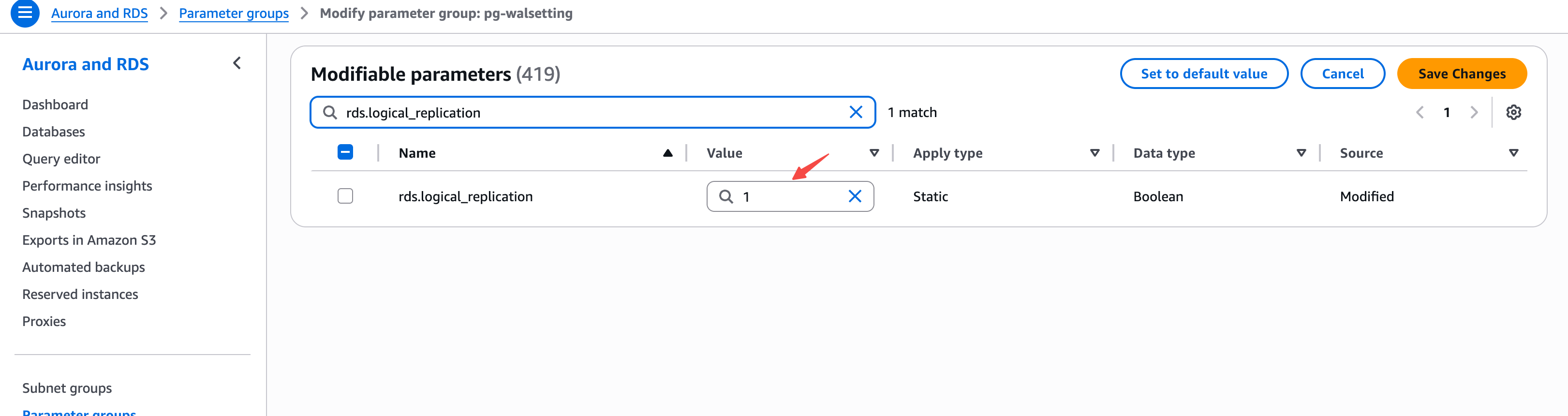
- Edit the parameter group, search for
rds.logical_replication, and set the value to1:
- Click Save Changes.
Step 3: Apply Parameter Group and Restart
- In the RDS console, select the target instance and click Modify.
- Under DB parameter group, select the newly created parameter group.
- Select Apply immediately to apply changes.
- Restart the RDS instance for the changes to take effect.
Modifying the rds.logical_replication parameter requires restarting the RDS instance to take effect. Please perform this during off-peak hours.
Step 4: Create Sync User
Create a dedicated user for Doris continuous load:
CREATE USER doris_sync PASSWORD '<password>';
Grant schema access permissions (using public schema as an example, replace as needed):
GRANT USAGE ON SCHEMA "public" TO doris_sync;
GRANT SELECT ON ALL TABLES IN SCHEMA "public" TO doris_sync;
ALTER DEFAULT PRIVILEGES IN SCHEMA "public" GRANT SELECT ON TABLES TO doris_sync;
Grant replication permission:
GRANT rds_replication TO doris_sync;
Amazon RDS PostgreSQL uses the rds_replication role to grant replication permissions, instead of the standard PostgreSQL REPLICATION attribute.
Step 5: Create Publication
Run the following SQL to create a Publication:
CREATE PUBLICATION dbz_publication FOR ALL TABLES;
Currently Doris only supports the Publication named dbz_publication with FOR ALL TABLES. Custom Publication names or specifying individual tables are not supported.
Note: If the sync user has superuser privileges (e.g., the
rds_superuserrole), Doris will automatically create the Publication and this step can be skipped.