FineBI
FineBI is a business intelligence product that provides data processing, ad hoc analysis, multi-dimensional dashboards, and many other capabilities. It supports a rich set of data source connections and multi-view table analysis management, and can smoothly support modeling and visualization processing of both internal and external data in Apache Doris.
This document describes how to connect to an Apache Doris data source in FineBI and complete the full flow from connection configuration to data modeling.
Applicable scenarios
| Scenario | Description |
|---|---|
| BI report analysis | Build dashboards and reports based on business data in Doris |
| Ad hoc multi-dimensional analysis | Use FineBI's multi-dimensional analysis capabilities to explore Doris data |
| Internal and external data modeling | Bring Doris internal tables and external tables into FineBI in a unified way for modeling |
Prerequisites
- FineBI 5.0 or later is installed. Download URL: https://www.finebi.com/
- An Apache Doris cluster has been deployed, and the following connection information is known:
- FE host IP address
- FE query port (default
9030) - A username and password with access permission
- Target database name
Procedure
Step 1: Log in to FineBI
-
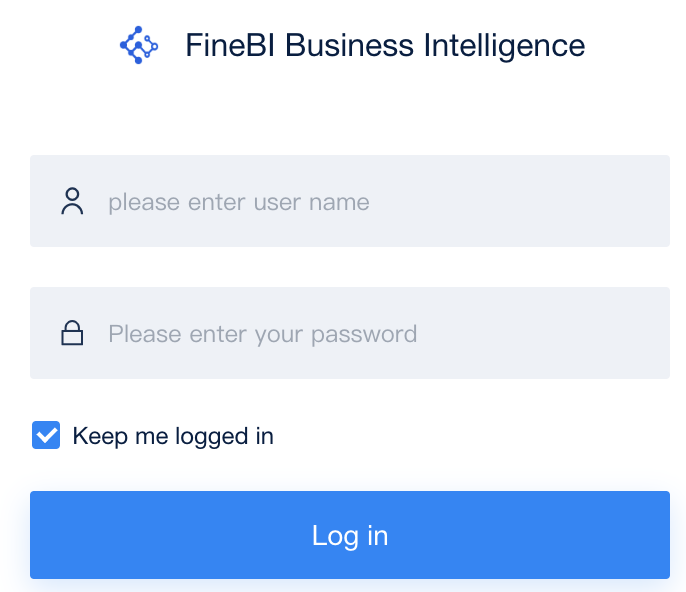
Create a FineBI login account and log in with that account.
-
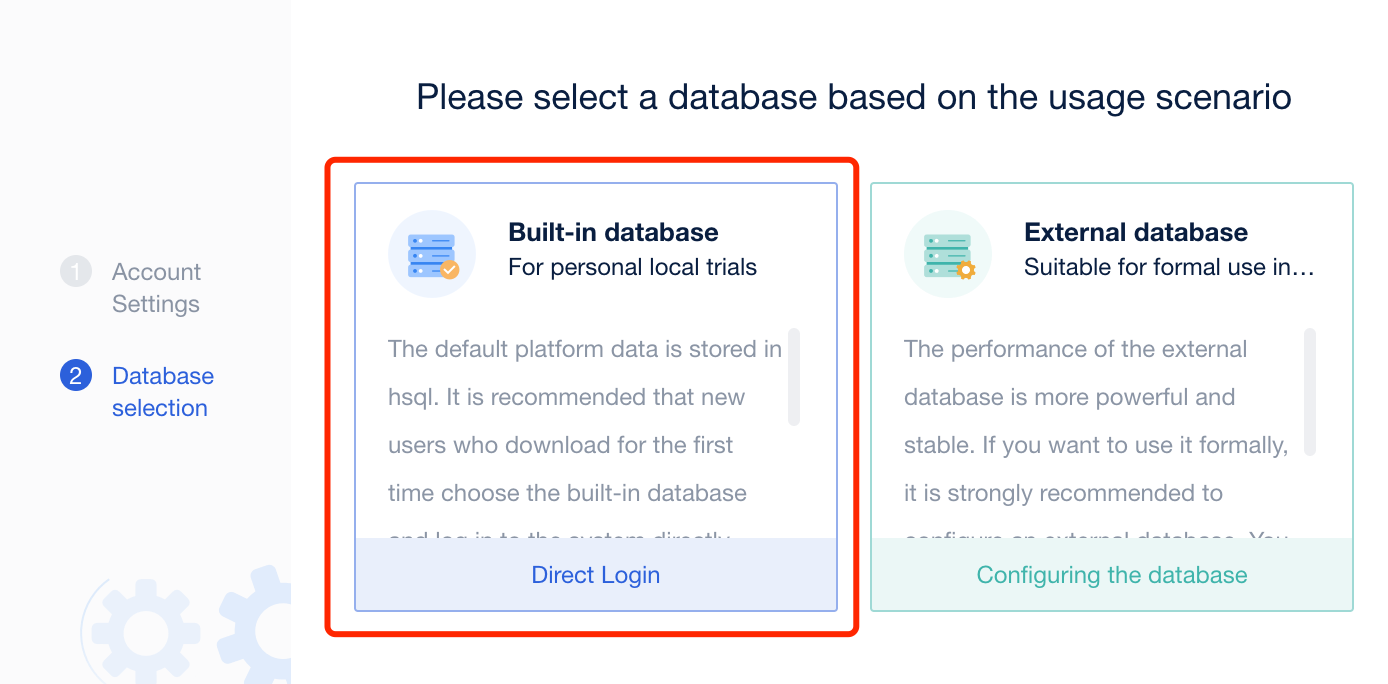
Select the built-in database as the FineBI information repository. To use an external database, refer to the official documentation: https://help.fanruan.com/finebi/doc-view-437.html
NoteIt is recommended to choose the built-in database as the FanRuan BI information repository. The database type selected here is not the target database used for query analysis, but the database used to store and maintain FineBI's metadata such as models and dashboards. FineBI needs to perform create, read, update, and delete operations on it.
Step 2: Create a Doris data connection
-
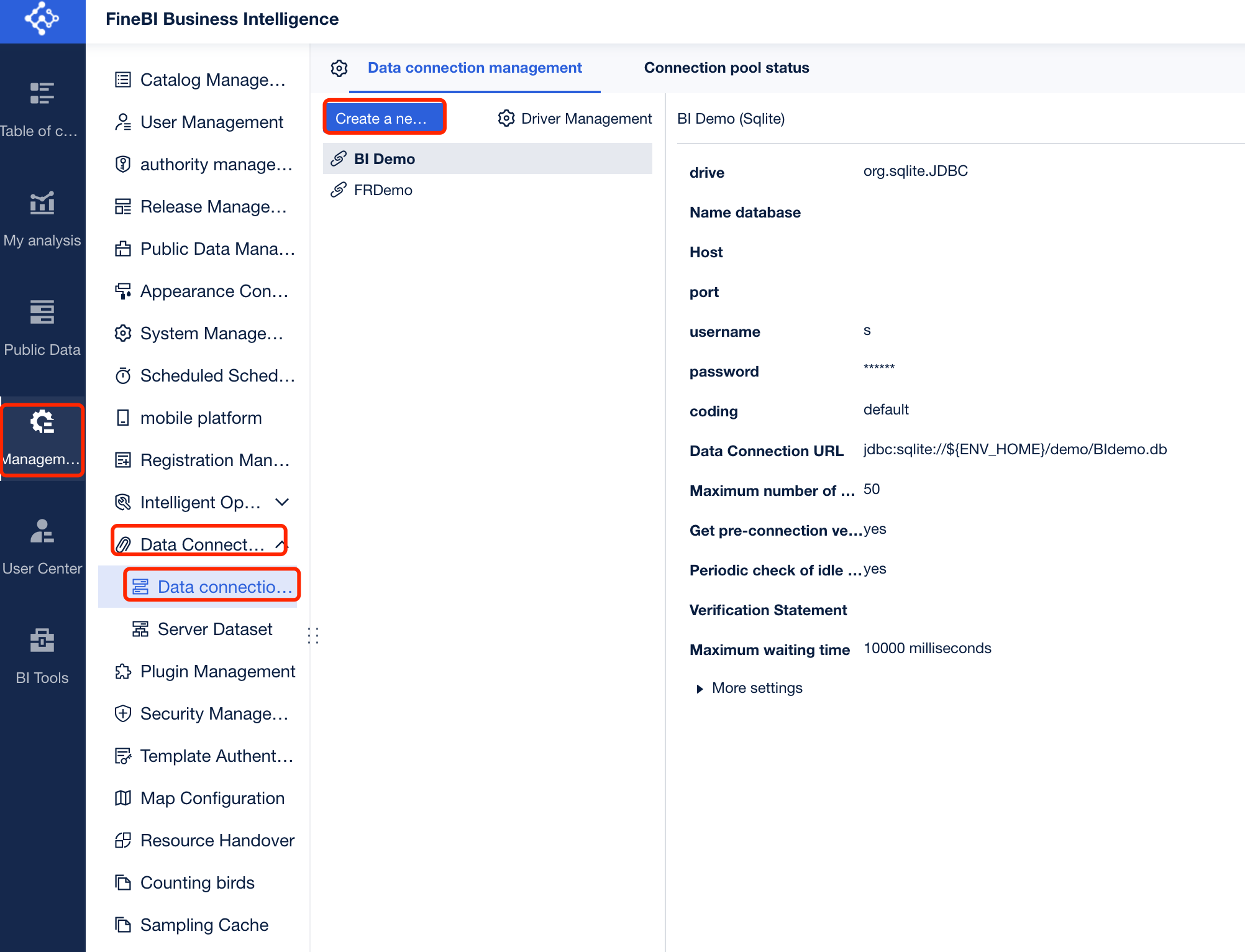
Go to Management System, choose Database Connection under Data Connection, and click to create a new database connection.
-
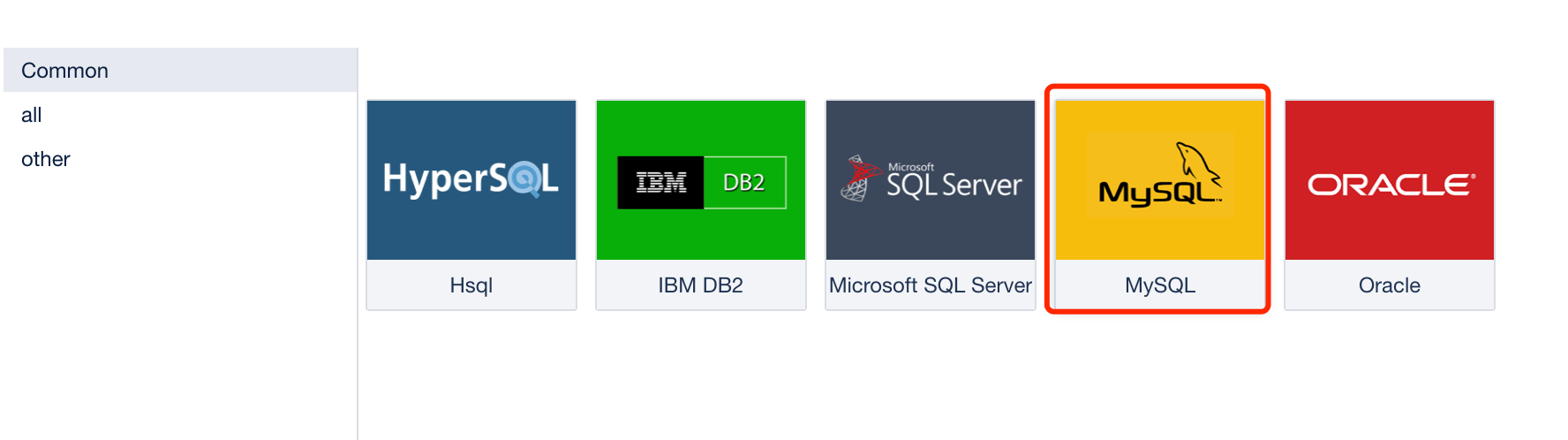
On the database connection type selection page, select MySQL.
-
Fill in the Doris database connection information. The parameters are described as follows:
Parameter Description Username The username used to log in to the Doris cluster, for example adminPassword The password used to log in to the Doris cluster Host The FE host IP address of the Doris cluster Port The FE query port of the Doris cluster, for example 9030Coding The encoding format used by the Doris cluster Name Database The target database in the Doris cluster 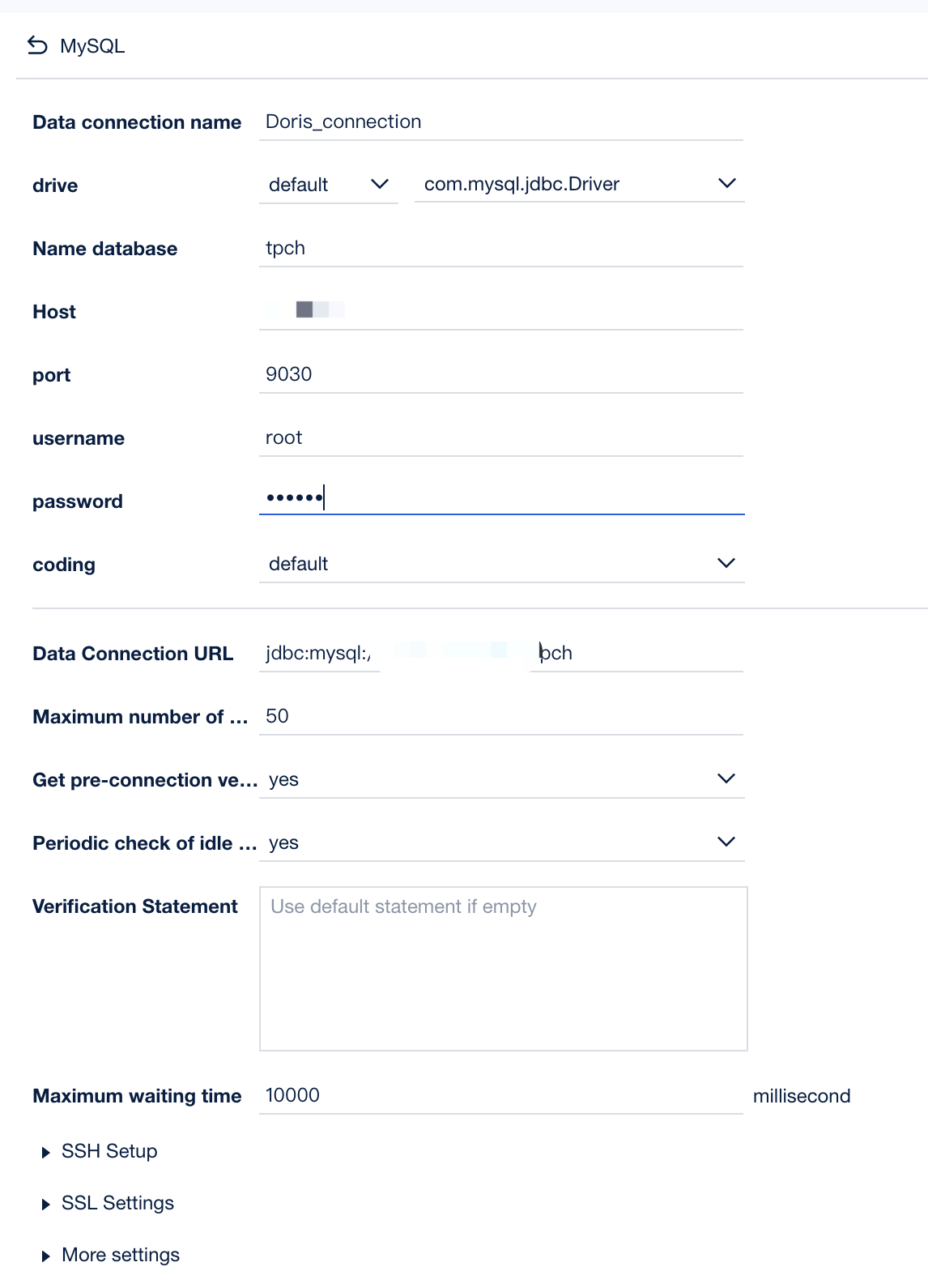
-
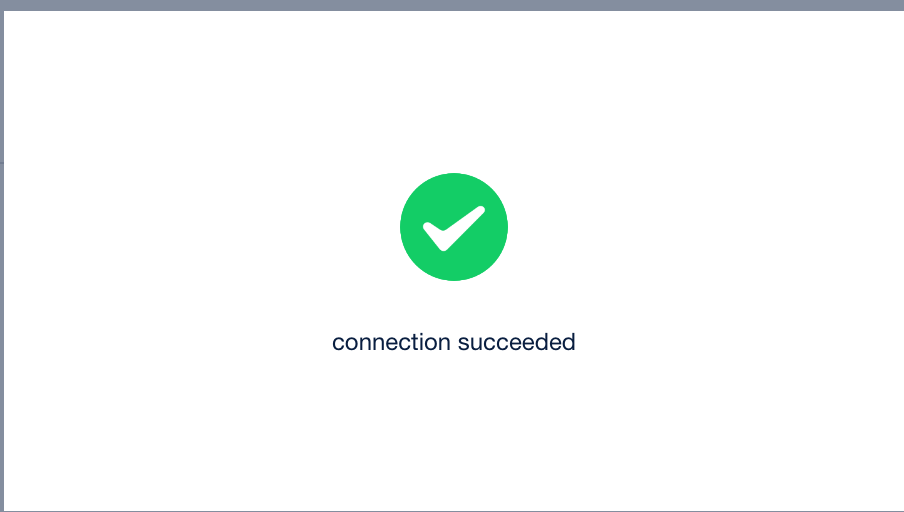
Click Test Connection. If the connection information is filled in correctly, a connection success message appears.
Step 3: Create a data model
-
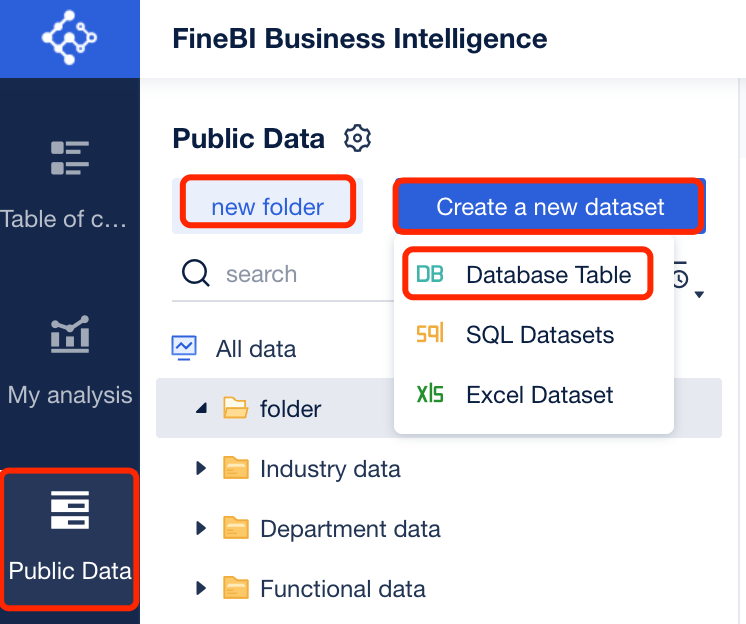
In Public Data, click to create a new dataset. When adding a Doris dataset, choose Database Table.
-
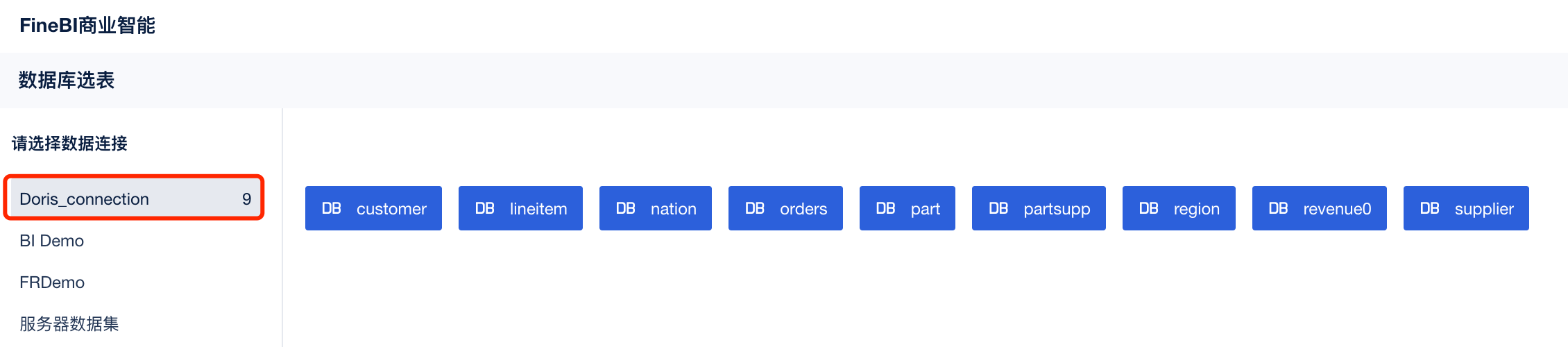
Under the database connection that has been created, select the tables to import.
-
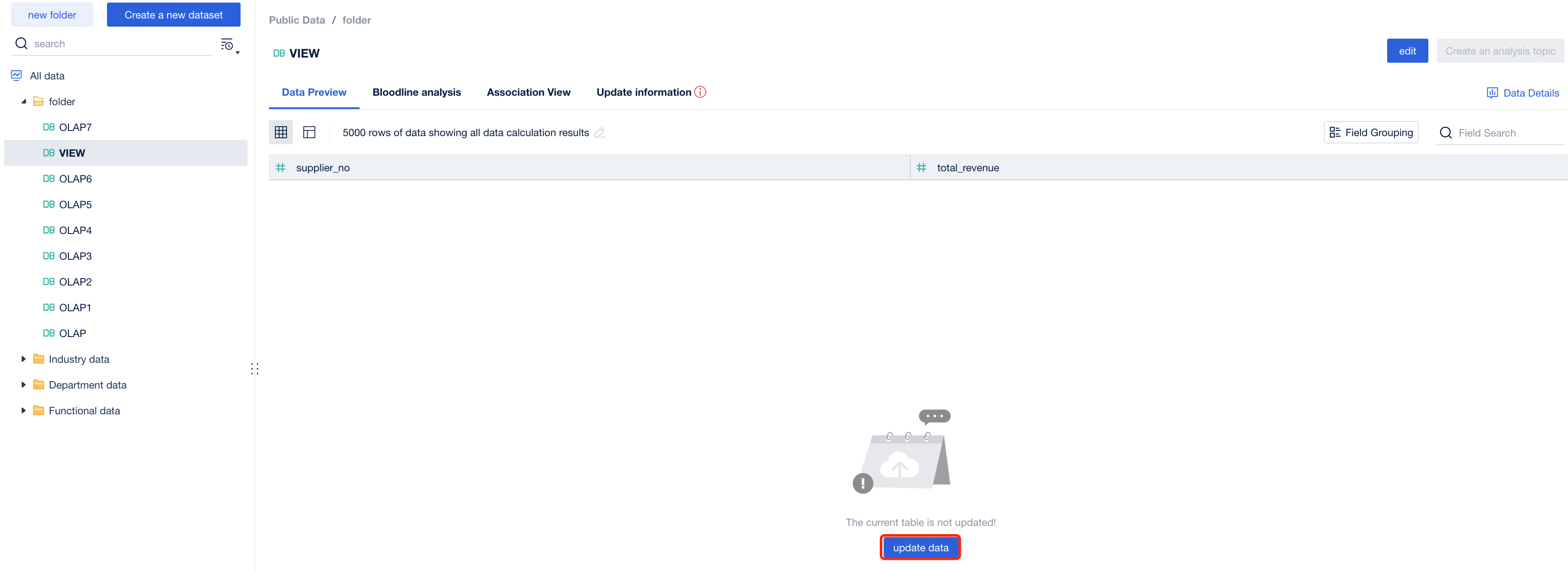
After the tables are imported, you need to refresh each imported table. Only after refreshing can the table be used for data analysis in an analysis topic.
-
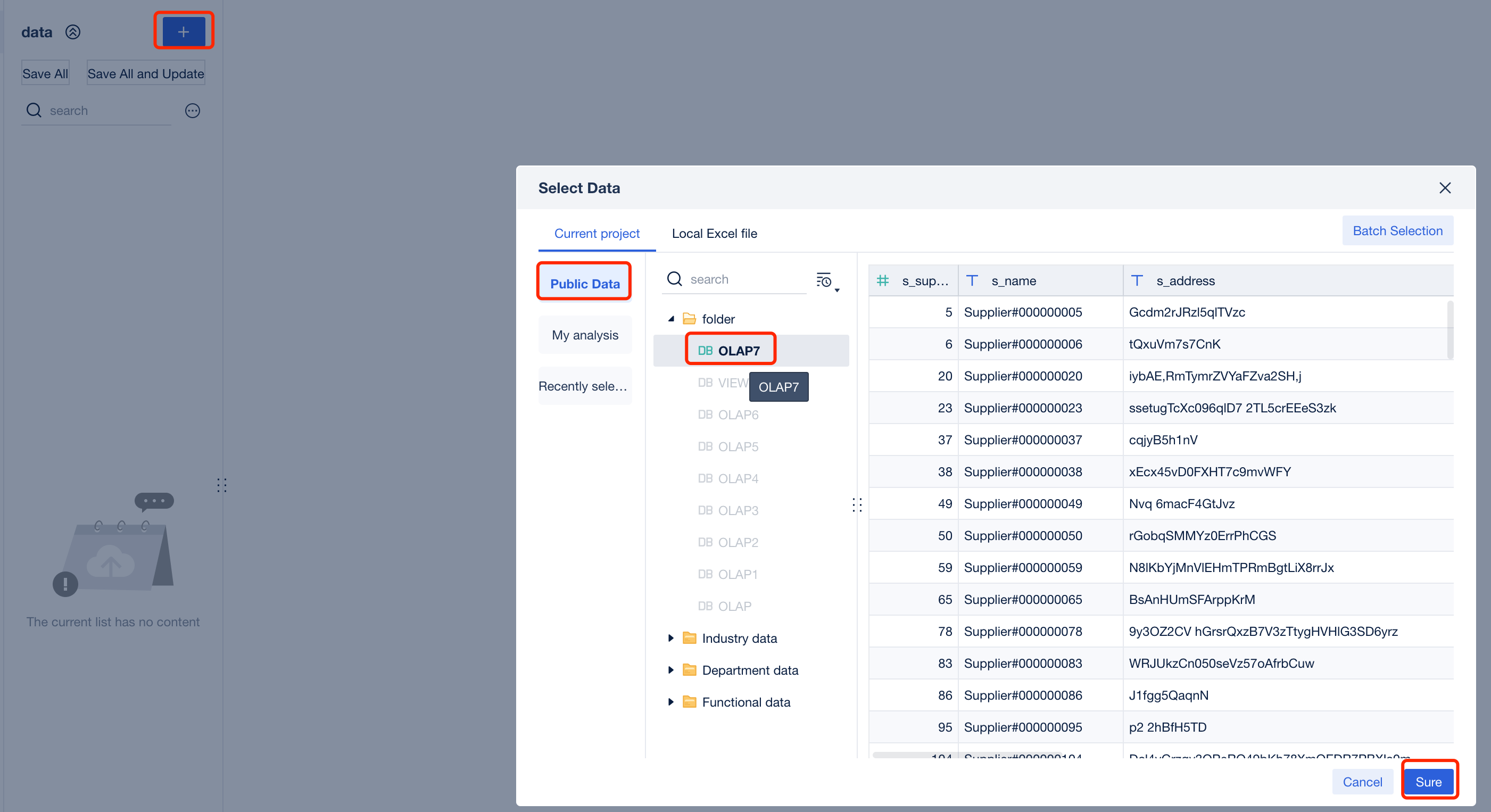
Add the imported public data to an analysis topic, and you can perform dashboard analysis and configuration according to your business logic.
FAQ
Q: How do I troubleshoot a failed connection test?
Check the following in order:
- Confirm that the Doris FE node IP and query port (default
9030) are reachable from the host where FineBI runs. - Confirm that the login user has permission to access the target database.
- Confirm that the connection type is set to MySQL, not another database type.
Q: Why can I not analyze a table in an analysis topic after importing it?
You need to refresh each imported table in Public Data. After the refresh completes, the table can be used in an analysis topic.