Quick BI
Quick BI is a business intelligence tool built on data warehouses that helps enterprises quickly build visualization analysis dashboards. Quick BI supports a variety of data sources, including databases such as MySQL, Oracle, SQL Server, and Apache Doris, as well as file formats such as Excel, CSV, and JSON. It provides visualization components such as tables, charts, and maps, allowing users to perform data visualization analysis through drag-and-drop operations.
This document describes how to connect an Apache Doris data source in Quick BI and create a dataset based on the Doris data source for subsequent report analysis.
Applicable Scenarios
| Scenario | User Goal | Outcome |
|---|---|---|
| Connect a Doris data source | Create an Apache Doris data source in a Quick BI workspace | Quick BI can access data in Doris |
| Create an analysis dataset | Select a Doris table based on the created data source | Generate a dataset that can be used for report configuration |
| Build visualization reports | Use Quick BI visualization components to analyze Doris data | Display analysis results through components such as tables, charts, and maps |
Quick BI Capability Overview
| Capability | Description |
|---|---|
| Database data sources | Supports databases such as MySQL, Oracle, SQL Server, and Apache Doris |
| File data sources | Supports file formats such as Excel, CSV, and JSON |
| Visualization components | Provides components such as tables, charts, and maps |
| Analysis method | Supports data visualization analysis through drag-and-drop operations |
Prerequisites
Before starting, make sure the following information is ready:
- You have logged in to Quick BI and can create a workspace.
- The connection information for Apache Doris is ready.
- A data table that can be used to create a dataset is available in Doris. This document uses the TPC-H dataset as an example.
Procedure
| Step | Goal | Description |
|---|---|---|
| Step 1 | Create a workspace | Log in to Quick BI and create a workspace for managing data sources and datasets |
| Step 2 | Create a Doris data source | Select Apache Doris in the workspace and fill in the Doris connection information |
| Step 3 | Verify the connection result | After the connection succeeds, view the created data source in the data source list |
| Step 4 | Create a dataset | Create a dataset based on the Doris data source and use it for subsequent report configuration |
Step 1: Create a Quick BI Workspace
-
Log in to Quick BI and create a workspace.
-
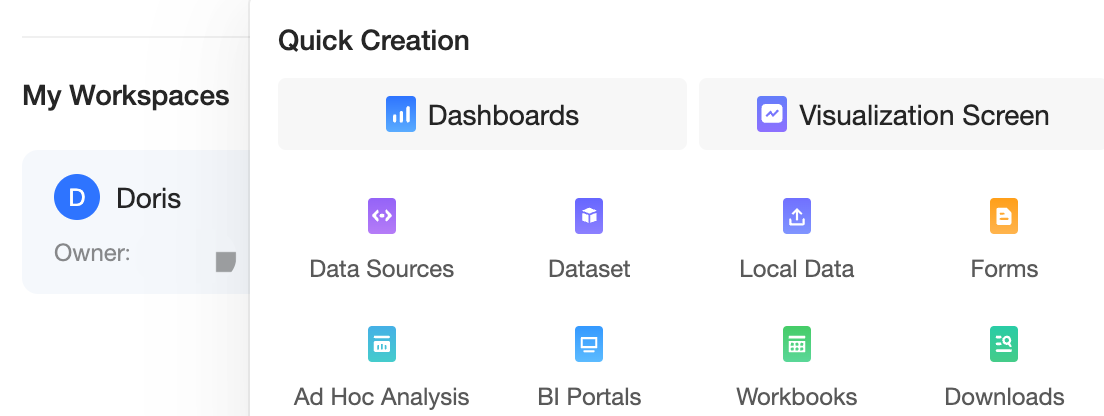
In the current workspace, click Create Data Source.
Step 2: Create a Doris Data Source
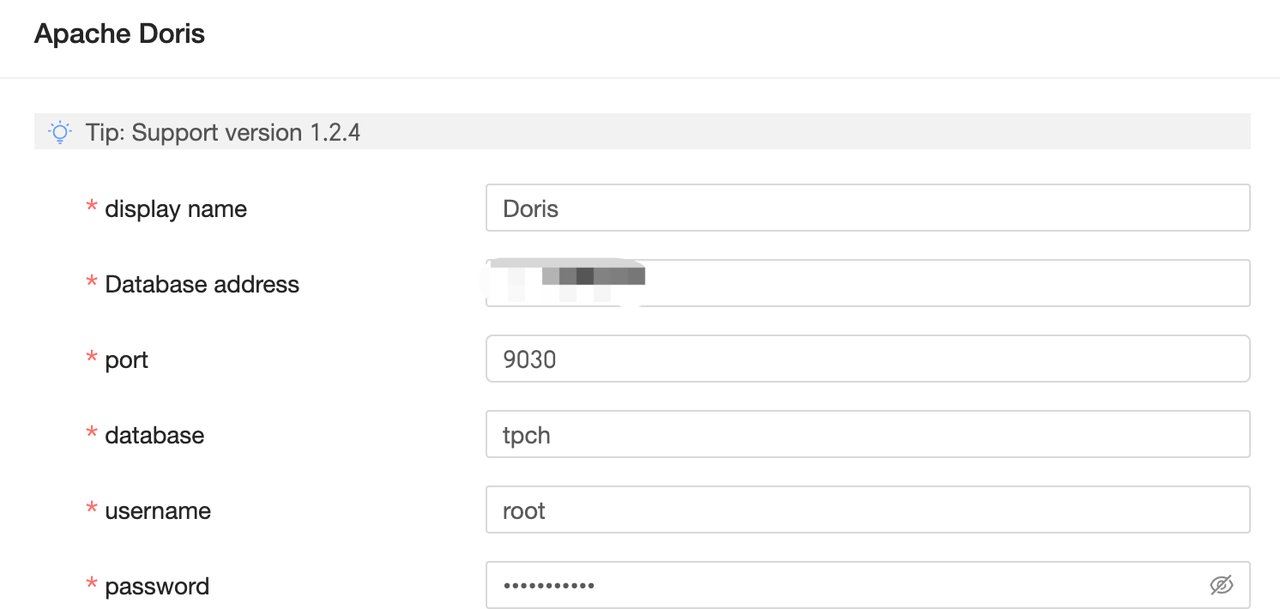
On the Create Data Source page, select Apache Doris and fill in the corresponding Doris connection information.
Step 3: Verify the Data Source Connection Result
After the connection succeeds, you can see the created Doris data source in the data source list.

Step 4: Create a Dataset and Configure a Report
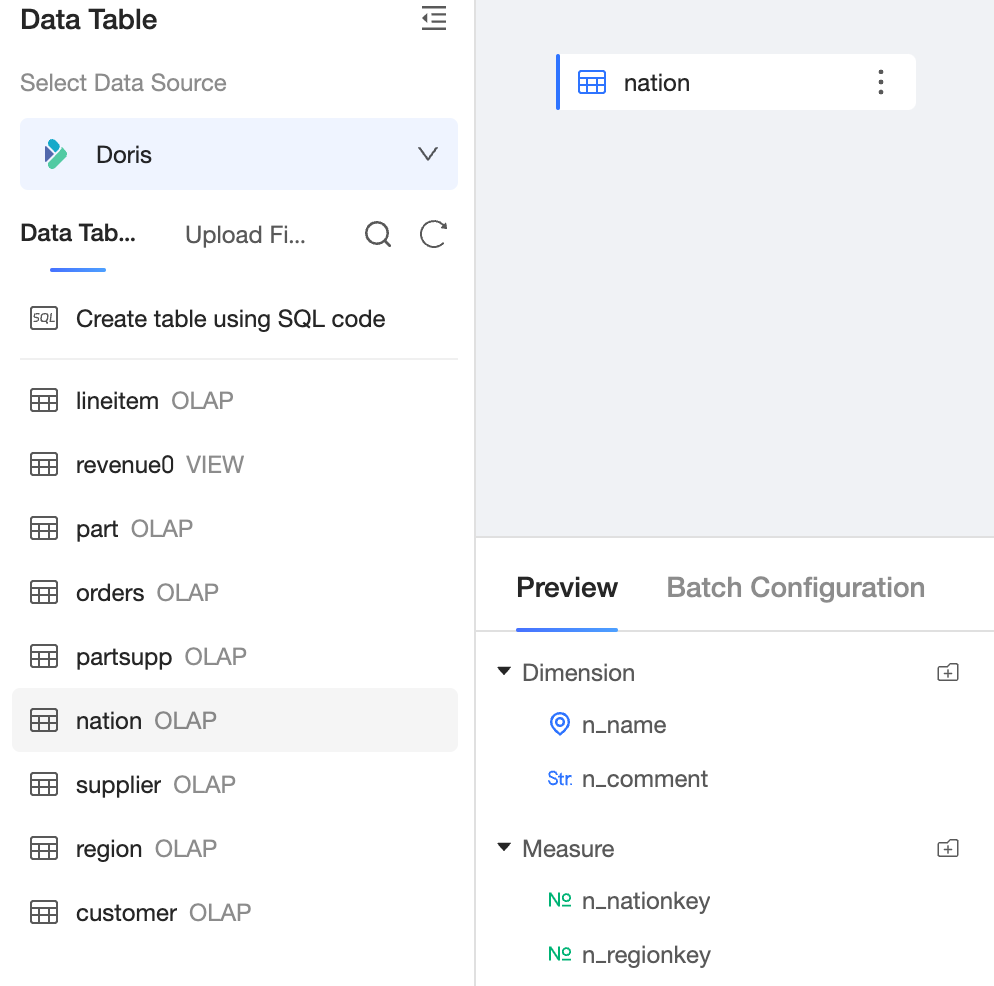
Create a dataset under the created data source. This document uses the TPC-H dataset as an example. After the dataset is created, you can configure the corresponding report.
Result
After completing the configuration above, Quick BI can access Doris data through the created Doris data source and configure visualization analysis reports based on the dataset.